Support
Support - Construxion Pro User Guide
The support system provides a built-in ticket system for customers to report issues and request help. Available to all roles.
User Side (Customer View)
Viewing Tickets
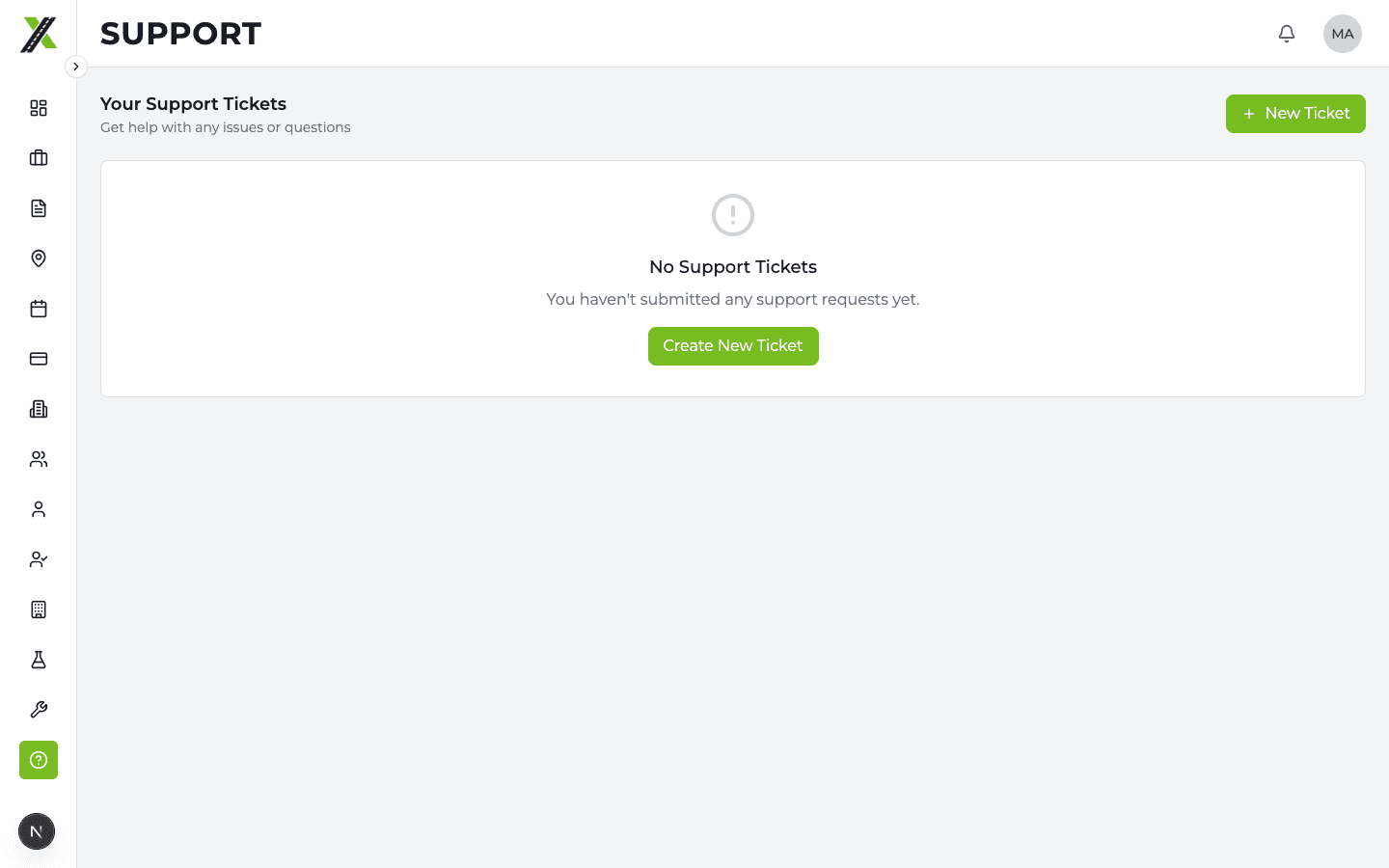
Go to Support in the sidebar to see your open tickets:
- List of all your submitted tickets
- Status indicator (Open, In Progress, Resolved, Closed)
- Click a ticket to view its message thread
Creating a Ticket
- Go to Support
- Click New Ticket
- Enter:
- Subject — Brief description of the issue
- Category — Type of issue
- Description — Detailed explanation
- Click Submit
Message Thread
Each ticket has a conversation thread:
- Send messages to the support team
- View responses from Construxion Pro support
- Attach files if needed
Admin Side (Support Team View)
As a Construxion Pro support team member, you access all tickets from Admin > Tickets.
Ticket Management
The admin ticket view shows:
- All tickets from all companies
- Filter by status, priority, and category
- Search by subject or company name
- Click a ticket to open its detail page
Responding to Tickets
- Click a ticket to open the detail view
- Read the customer's message thread
- Type your response and click Send
Internal Notes
Messages can be flagged as internal (is_internal = true). Internal notes:
- Are visible only to the Construxion Pro support team
- Are hidden from the customer
- Useful for documenting investigation steps or escalation notes
Email Notifications
The support system sends email notifications via Loops.so:
- New ticket notification — Sent to the support team when a ticket is created
- Reply notification — Sent to the customer when support responds
Common Support Workflows
Password Reset Request
If a customer can't reset their password:
- Verify their identity
- Use Admin > Users to find them
- Use the impersonation feature to verify their account status
- Guide them through the forgot-password flow, or reset manually via Supabase Auth
Permission Issues
If a user can't access a feature:
- Check their role (Admin > Users or the company's employee list)
- Check per-user permission overrides on their employee record
- Check the company's role permission defaults (Settings > Role Permissions)
- The 3-tier system resolves: user override > company role default > hardcoded default
Feature Questions
Reference the relevant section of this user guide. The Quick Start Guide covers the core workflow, and individual feature docs cover specifics.