Permits
Permits - Construxion Pro User Guide
Construction permits are required by municipalities before certain types of work can begin. Construxion Pro tracks permits throughout their lifecycle, alerts managers when they're expiring, and handles renewals.
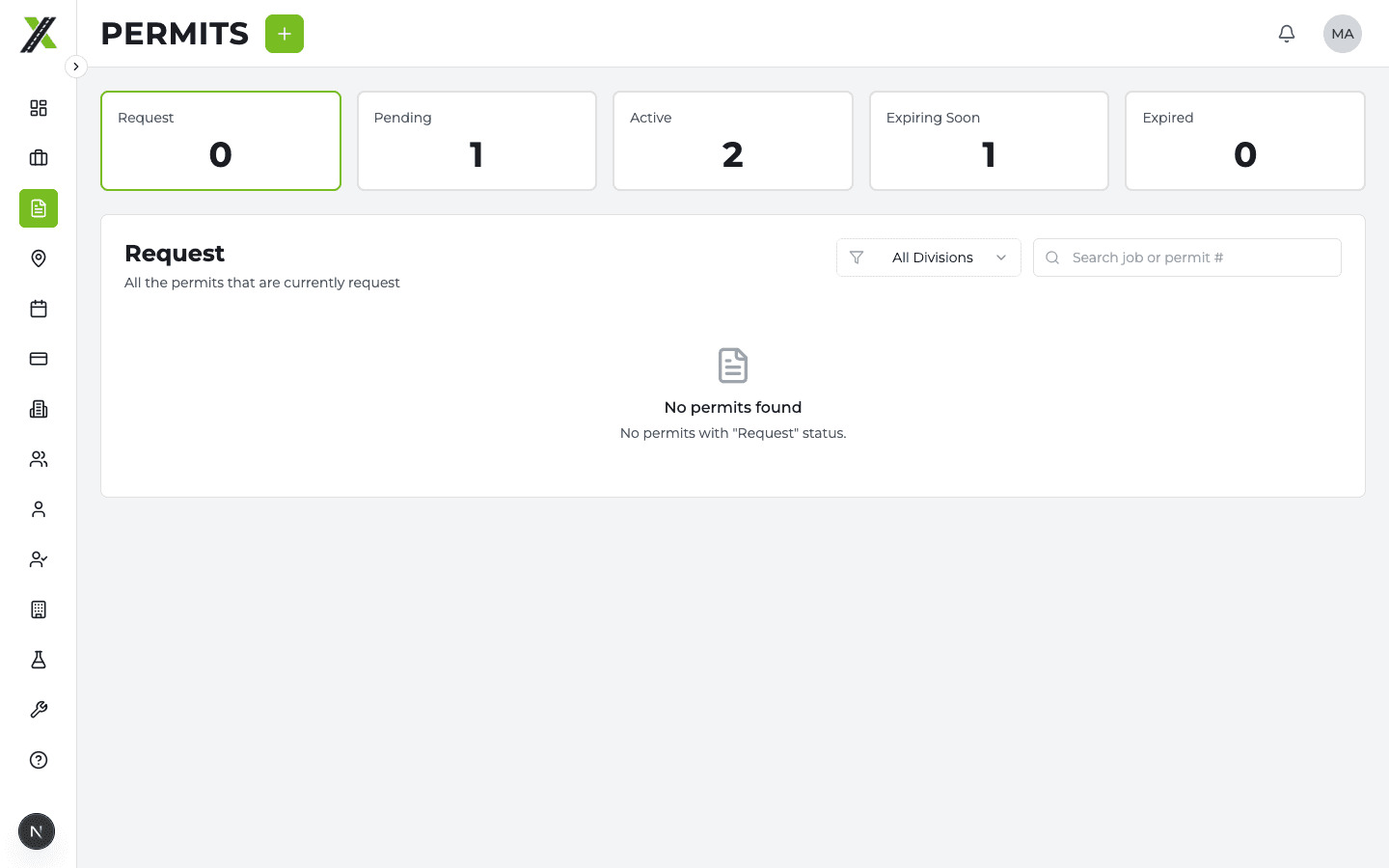
Permit List Page
The Permits page shows all permits across all jobs. Available to Owner, Manager, and Administrative roles.
- Filter by status
- Search by permit number or job name
- Status counts shown at the top
Permits are grouped into renewal chains — if a permit has been renewed, only the most recent version shows as a card. Previous versions appear in a collapsible "Renewal History" section at the bottom of the card.
Permit Statuses
| Status | Meaning |
|---|---|
| Pending | Permit application submitted, awaiting approval |
| Active | Permit approved and valid |
| Expiring | Permit nearing expiration date |
| Expired | Permit past expiration date |
Creating a Permit
Permits can be created from:
- The Activation Wizard (during division activation, if "permit required" is selected)
- The Job Details tab (Permits section)
- The Permits page
Permit fields include:
- Job and division
- Permit number
- Status
- Issue date and expiration date
- Cost (flat cost or cost-plus with markup)
- Instructions and details
- File attachments
- Map drawings (drawn on the job's map)
Permit Costs and Billing
When a permit has a cost, a billing item is auto-created:
- Cost type: Flat dollar amount
- Cost Plus type: Base cost x (1 + markup%)
If the cost changes after the billing item has been invoiced, an adjustment billing item is created for the difference (the original is never modified).
Renewal Flow
When a permit is expiring or expired:
Renew
- Click Renew on the permit card or from the dashboard alert
- A renewal modal opens with the original permit's data pre-filled
- Adjust dates, number, and other fields as needed
- Click Create Renewal
This creates a new child permit linked to the original via parent_permit_id. If the new permit is created with "Active" status, the parent is automatically expired.
The parent permit's renewal_status is updated by a database trigger:
pending— Renewal exists but isn't active yetactive— Renewal is active
Don't Renew
Click Don't Renew to dismiss the expiration alert without creating a renewal. This sets renewal_dismissed = true on the original permit. The alert disappears from dashboards, but the permit itself stays in its current status.
If a renewal chain exists later (the permit was renewed from elsewhere), renewal_status takes precedence over renewal_dismissed.
Status Badges
On the Details tab, permits show visual badges:
- "Renewal Pending" (blue) — A renewal exists but isn't active
- "Renewed" (green) — An active renewal exists
- "Will Auto-Expire" (amber) — Renewal was dismissed, and the permit isn't already expired
Dashboard Alerts
- Manager Dashboard: Expiring/expired permits appear as alert cards with Renew and Don't Renew actions
- Admin Dashboard: Permits organized in tabbed sections (Request, Pending, Expiring, Expired) with inline expansion for full details
- Daily push notification: At ~6 AM Mountain, managers and owners receive a summary of expiring/expired permits
Permit Menu Actions
The three-dot menu on permit cards varies by status:
Expiring/Expired permits: Edit, Renew, Don't Renew, Delete All other statuses: Edit, View Details, Change Status, Delete
Delete is restricted to Owner and Administrative roles.
Expandable Cards
On both the Admin and Manager dashboards, permit cards can be expanded inline to show:
- Instructions
- Request details
- Additional details
- File attachments (as clickable links)
- Map thumbnail (if map drawings exist)
This lets you review permit details without opening the full edit modal.