Schedule
Schedule - Construxion Pro User Guide
The Schedule is the central planning tool for coordinating crews across jobs. Available to Owner, Manager, Administrative, Superintendent, and Foreman roles.
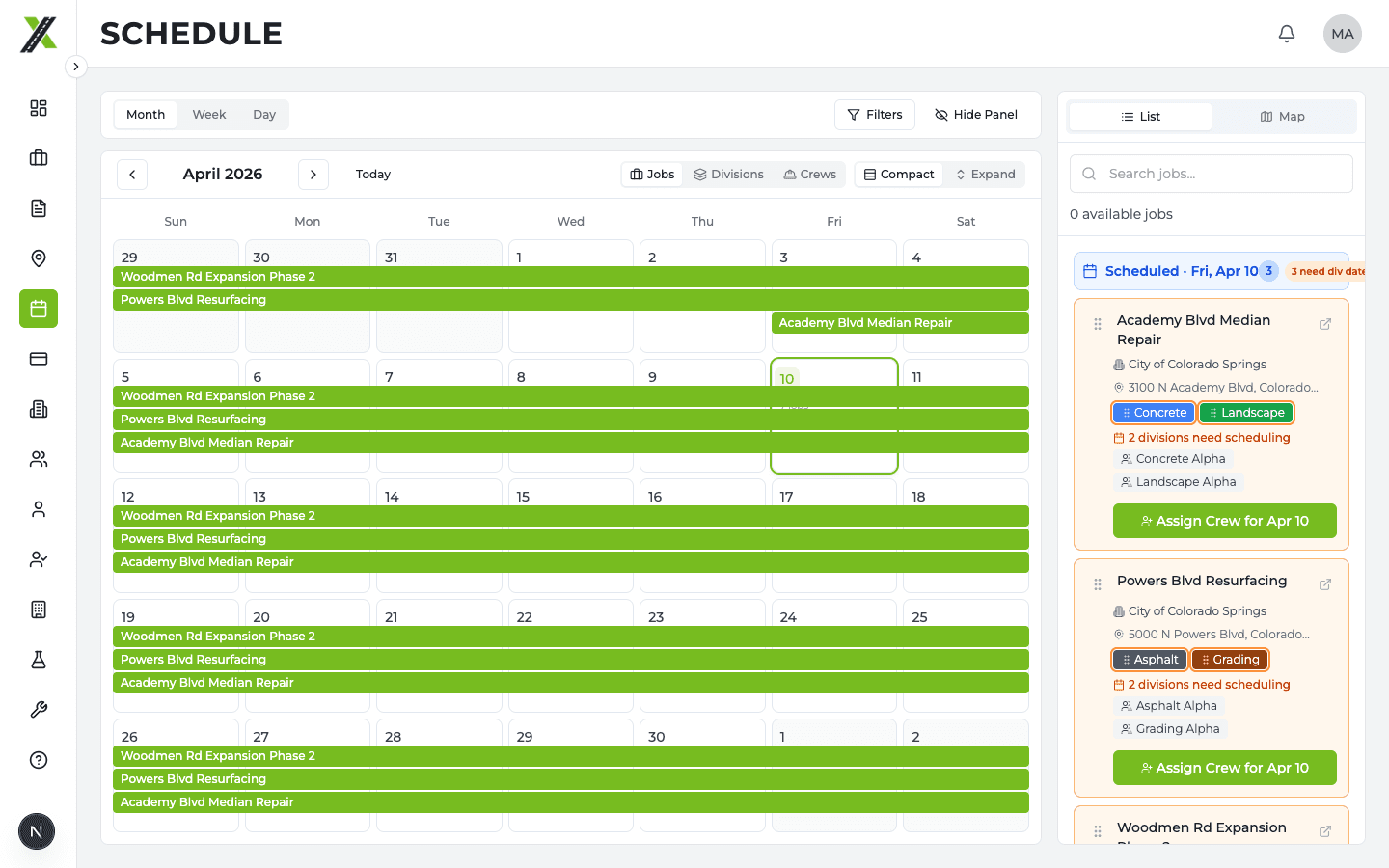
Schedule Views
Month View
The default view. Shows a calendar grid with color-coded bars representing jobs, divisions, or crew assignments spanning across days.
- Color-coding: Each division has its own color; bars inherit the division's color
- Bars: Represent the duration of a job/division/crew assignment across multiple days
- Today indicator: Green pill on today's date number
- Click a bar: Selects the specific day column you clicked (not the bar's start date) and opens the side panel drill-down
- Click a day: Opens the side panel for that day
Week View
Two sections stacked:
- All-day bars (top) — Same color-coded bars as month view, but for a single week
- Hourly grid (bottom) — Time slots for inspections, pours, deliveries, and other events
Daily View
Shows crew assignment cards for a single day. Each card shows the crew name, assigned job, and items/tasks for that day.
Mobile View
On screens under 768px, the schedule switches to a mobile-optimized layout:
- Sticky header with Today button, month navigation, and division filter
- View toggle: Jobs / Divisions / Crews (segmented control)
- Mini-month grid: Small calendar with colored dots showing scheduled activity
- Day detail panel: Cards for the selected day (switches between JobCard, DivisionCard, CrewCard based on view mode)
- Schedule Job button: Opens a bottom sheet job picker for quick scheduling
Drag-and-Drop (Desktop Only)
Managers and above can drag bars and items to reschedule:
- Drag a bar in month or week view to move it to a different day
- Drop zones: Calendar day cells, weekly header cells, weekly all-day rows
- Cascade rescheduling: When a parent (job or division) is moved, all child items shift by the same working-day offset. This uses working-day math, not calendar days, so moves are reversible across weekends.
Who can drag: Only users with canEdit permission (Owner, Manager, Administrative). Superintendent and Foreman see the schedule but cannot make changes — the DndContext sensors are disabled for them.
Side Panel
Clicking a bar or a day opens the side panel on the right side. The panel supports drill-down navigation:
- Day view — Shows all jobs scheduled for that day
- Job view — Click a job to see its divisions
- Division view — Click a division to see crew assignments
- Crew Assignment view — Shows the crew's items for a specific day
At each level, you can see details and take actions (edit assignment, add items, etc.).
Edit Assignment Dialog
Click the edit button on a crew assignment to open a tabbed dialog:
Items tab: Non-work schedule items (inspections, pours, events)
- View existing items with time and duration
- Add new items with the "+ Add Item" button
- Edit time and duration inline
Tasks tab: Work tasks from the job
- Shows available
worktasks that can be attached to this crew assignment - Check/uncheck to attach or detach tasks
- Set time and duration for each attached task
- Tasks auto-load when you first switch to this tab
Scheduling a Job
To add a job to the schedule:
- Open the side panel (click a day or use the "Schedule Job" button on mobile)
- Find the job in the job list (search available)
- Select the division and crew
- Set start and end dates
- The crew assignment appears on the calendar
Working Days
The schedule respects configurable working days:
- Company default: Monday through Friday
- Per-job override: Some jobs may work weekends
When calculating schedules, the system uses working-day offsets. For example, if a crew is scheduled Monday-Friday and you move the start date from Monday to Wednesday, the end date shifts by 2 working days (not 2 calendar days), skipping weekends.
Schedule Permissions
| Role | Can View | Can Edit (Drag/Reschedule) |
|---|---|---|
| Owner | Yes | Yes |
| Manager | Yes | Yes |
| Administrative | Yes | Yes |
| Superintendent | Yes (assigned divisions only) | No |
| Foreman | Yes (assigned crew only) | No |
Schedule Visibility (Finalization)
Managers control when field crews can see their schedules. The visibility mode is configured in Settings > Schedule:
- Immediate — Crews see schedule changes as they're made
- Midnight — Schedule becomes visible at midnight the night before
- Day before — Manager manually finalizes for the next day
- Day of — Manager manually finalizes the morning of
The Finalize Schedule button on the Manager Dashboard publishes the schedule to field crews.
Schedule Items vs. Work Tasks
It's important to understand the distinction:
| Work Tasks | Schedule Items | |
|---|---|---|
| Created from | Task templates during activation | Schedule (Add Item on assignment) |
| Appears on | Tasks tab | Schedule only |
| Has measurements | Yes | No |
| Feeds billing | Yes (via measurement approval) | No |
| Types | Always work | inspection, other (pour, delivery, meeting, etc.) |
The Edit Assignment Dialog is where these two worlds meet — you can attach existing work tasks and create new schedule items, all on the same crew assignment.