Getting Started
Getting Started - Construxion Pro User Guide
Logging In
- Navigate to https://app.construxionpro.com
- Enter your email address and password
- Click Sign In
Forgot Your Password?
- On the login page, click Forgot password?
- Enter your email address
- Check your inbox for a reset link (sent via Loops.so)
- Click the link — it takes you to the Reset Password page
- Enter your new password and confirm it
Magic Links
Some users may receive a magic link email instead of using a password. Clicking the link automatically logs you in and redirects to the Dashboard.
The Interface
Sidebar Navigation
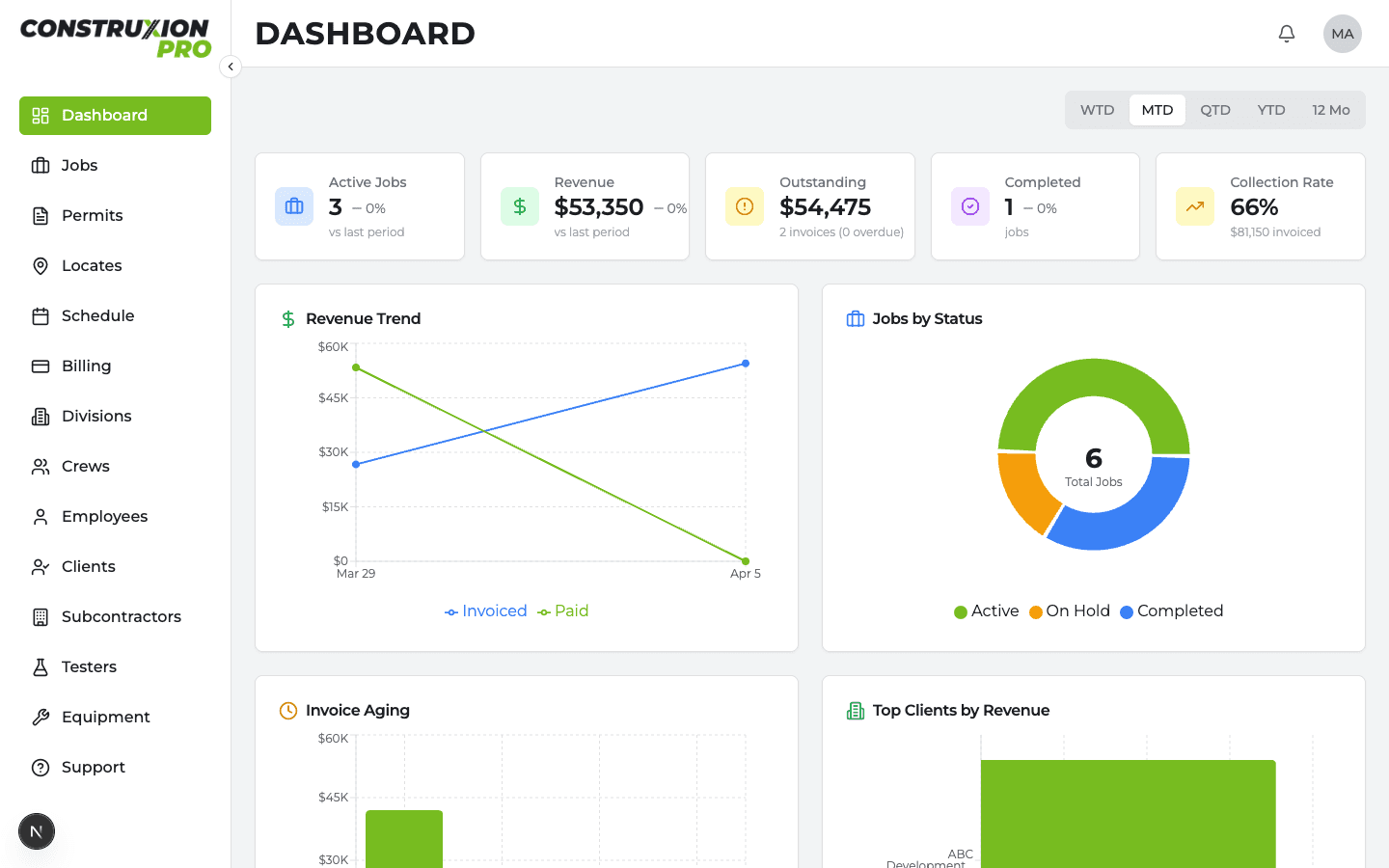
The left sidebar is the primary way to navigate between sections. It shows different items based on your role (see the Quick Start Guide for the full list).
- Expanded: Shows icons with labels (240px wide)
- Collapsed: Shows icons only (80px wide) — hover for tooltips
- Toggle: Click the collapse/expand button at the top of the sidebar
On mobile, the sidebar is replaced by a hamburger menu in the top bar. Labor users don't see the sidebar on mobile (they only have the Dashboard).
Top Navigation Bar
The top bar (70px tall) contains:
- Page title — Shows the current page name in bold uppercase
- "+" button (green) — Quick-create actions (new job, etc.)
- Notification bell — Shows unread notification count; click to open the notification panel
- Profile avatar — Click for a dropdown with:
- Profile — Edit your personal info
- Settings — Open the settings panel
- What's New — View recent app updates and changelog
- Admin — (Only visible to Construxion Pro platform admins) Access the admin panel
- Sign Out — Log out of the app
Notifications
The notification bell in the top bar shows a red badge with your unread count. Notifications are triggered by:
- Someone mentions you in a task or job comment
- Someone replies to your comment
- A task is assigned to you
- A job is assigned to you
- A task deletion is requested, approved, or rejected
- A division is activated on one of your jobs
Click the bell to see your notification list. Click a notification to navigate directly to the relevant item.
Push Notifications
Construxion Pro supports browser push notifications for high-priority events (mentions, replies, assignments, deletion requests).
To enable push notifications:
- When prompted by the banner at the top of the Dashboard, click Enable
- Your browser will ask for notification permission — click Allow
- You can toggle push notifications on/off in Settings > Alerts
Push notifications are sent for the most important events only — routine comments and status changes appear only in the in-app bell.
Daily Expiration Alerts
If you're a division manager or company owner, you'll receive a daily push notification (around 6 AM Mountain) summarizing any permits or locates that are expiring or have expired. This runs automatically — no setup needed beyond enabling push notifications.
Your Profile
Access your profile from the avatar dropdown in the top bar, or from Settings > Profile.
You can edit:
- First name and last name
- Email address
- Phone number
- Profile photo (displays your initials if no photo is set)
Company Branding
Owners and Managers can customize the company's appearance in Settings > Company:
- Company name and contact information
- Logo — Appears in the sidebar, invoice headers, and daily log PDFs
- Accent color — Used throughout the app for buttons, active states, and branding elements (default is Construxion Pro green: #77bc20)
Mobile Experience
Construxion Pro is a progressive web app (PWA) that works on mobile browsers. Key mobile differences:
- Schedule: Switches to a mini-month calendar with day detail cards and a "Schedule Job" button
- Modals: Forms use bottom sheets instead of centered dialogs (better with on-screen keyboards)
- Maps: Collapsible by default in modals to save screen space
- Navigation: Hamburger menu replaces the sidebar
- Labor Dashboard: Includes "Get Directions" buttons that open Google Maps for each job site