Divisions
Divisions - Construxion Pro User Guide
Divisions represent the types of work a construction company performs — for example, Asphalt, Concrete, Grading, Landscape, or Flatwork. Each division has its own color, managers, task templates, and crews.
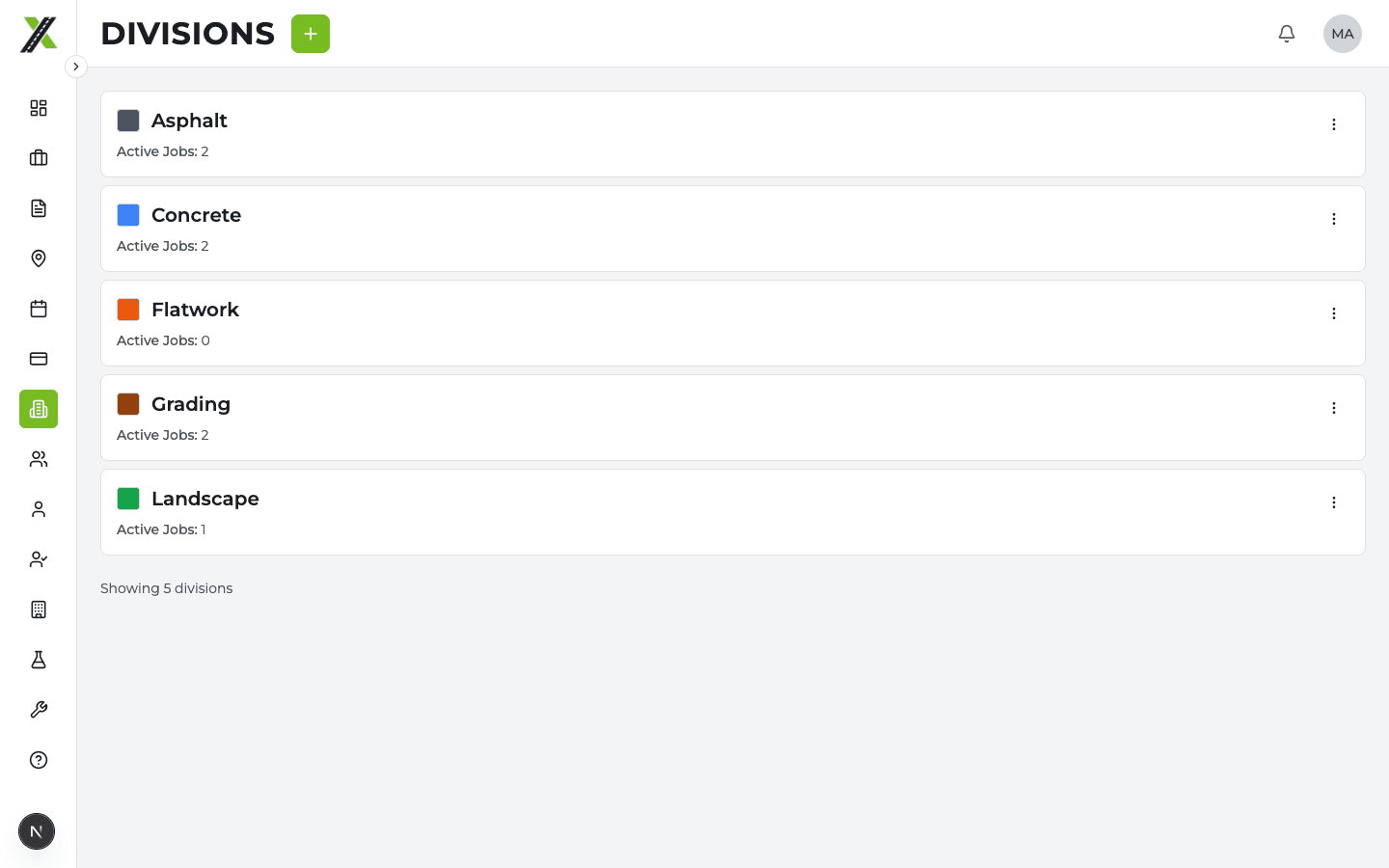
Divisions List Page
The Divisions page shows all company divisions. Available to Owner, Manager, and Administrative roles.
Each division card shows:
- Division name and color
- Number of active jobs
- Assigned managers
Creating a Division
- Click Create Division on the Divisions page
- Enter:
- Division name
- Color — Used throughout the app for visual identification (schedule bars, badges, etc.)
- Managers — Users who manage this division
- Click Create
Divisions are created via a server-side API route (not direct client-side insert) to ensure proper slug generation and avoid RLS issues.
Division Profile
Click a division to open its profile page with tabs:
Details Tab
- Division name, color, and description
- Assigned managers and superintendents
- Active/inactive status
Jobs Tab
- All jobs that include this division
- Job status and dates
Crews Tab
- Crews assigned to this division
- Create new crews directly from here
- Edit existing crew assignments
Tasks Tab (Task Templates)
- Task templates define what types of work this division performs and how they're measured/billed
- This is where measurement templates are configured (see Tasks > Measurement Templates)
Each template includes:
- Name (e.g., "Paving," "Sidewalk," "Curb & Gutter")
- Input type: length, length_width, length_width_depth, or quantity
- Output configurations: What units to calculate (CY, SF, SY, Tons, etc.)
- Passthrough outputs (unit matches input)
- Auto-calculated outputs (CF→CY, SF→SY)
- Factor-based outputs (e.g., Tons with a conversion factor)
- Template types: Named variants (e.g., "Standard" and "Deep Patch") with optional default depths and per-type conversion factors
- Default pricing: Set on outputs and types
Items Tab
- Division-specific catalog items for billing
Activation Workflow
When a job is created with divisions assigned, those divisions start as Pending on the job. The activation workflow is how a manager sets up their division for work.
Entry Points
- Manager Dashboard — "New Job Assignment" alert card with "Set Details" button
- Job Details Tab — Green "Activate" button on pending division cards
Activation Wizard Steps
The Job Activation Modal walks through five steps:
- Requirements — Does this division need a permit? A locate? Toggle yes/no for each.
- Permit — If required, create or link a permit (fields: number, status, dates, cost, attachments)
- Locate — If required, create or link a locate request
- Tasks — Select which task templates apply to this job. These become the billable work items.
- Schedule — Set start and end dates, assign crews
Activation Results
After completing the wizard, the division is set to either:
- Active — All prerequisites met (permits and locates satisfied)
- On Hold — A required permit or locate hasn't reached an acceptable status yet
Hold Reasons
A division goes on hold when:
- Permit required but permit status is not
activeorexpiring - Locate required but locate status is not
activeorexpiring_soon
Hold reasons are displayed on the division card. The hold is automatically resolved when the prerequisite reaches a satisfied status.
Pending Division Restrictions
While a division is Pending (not yet activated):
- The three-dot menu only shows Remove Division
- Edit Division and Set Status are hidden
- This prevents bypassing the activation flow
Once activated, all menu options become available.
Duplicate Job Detection
Inside the activation wizard, if the job looks like a duplicate, there's a "This looks like a duplicate" amber link that opens the Mark as Duplicate dialog. This gives managers an escape hatch right when the issue surfaces, instead of having to mark no-permit/no-locate as a workaround.
Division Colors
Each division has a unique color that appears throughout the app:
- Schedule bars and calendar dots
- Division badges on job cards
- Crew assignment cards
- Dashboard alerts
Choose visually distinct colors to make it easy to identify divisions at a glance on the schedule.