Billing
Billing - Construxion Pro User Guide
The Billing system covers the full revenue cycle: measurement-based billing items, manual charges, invoices, and payment collection.
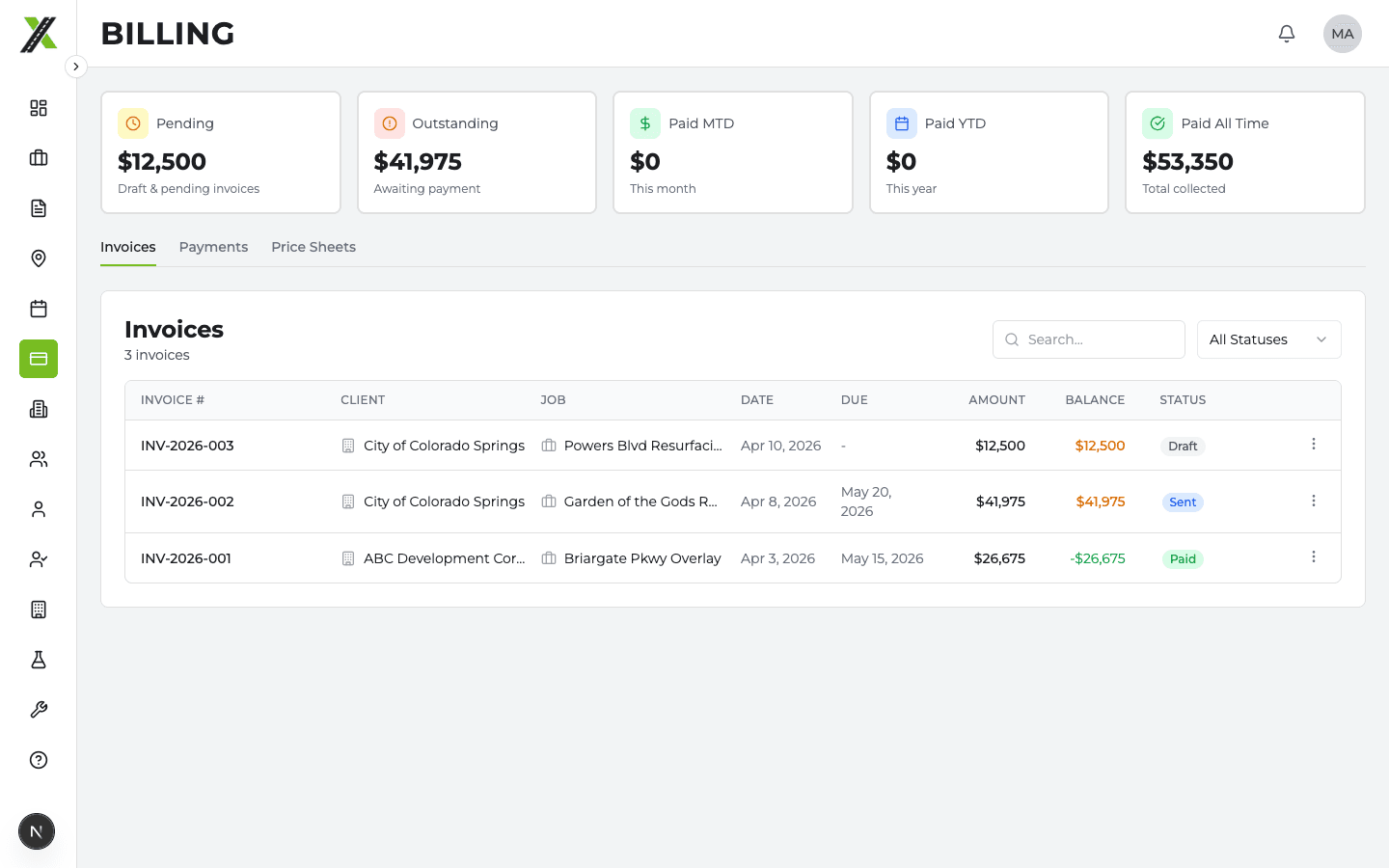
Accessing Billing
- Job Billing tab — Billing items and invoices for a specific job
- Billing page (sidebar) — Company-wide view of all invoices, payments, and price sheets
Both require the viewBilling permission (Owners and Managers have it by default; Administrative users need it granted).
Billing Items
Billing items are individual line items that become rows on an invoice. They come from several sources:
From Measurements (Automatic)
When actual measurements are approved on a task, a billing item is automatically created:
- Description:
{Task Name} ({Type Name}) - {Quantity} {Unit} - Category:
task - Price: Resolved from price sheets (see below)
- Unit change: You can change the billing item's unit from a dropdown on the Billing tab, which triggers recalculation from the original measurement data
From Permits & Locates (Automatic)
When a permit or locate has a cost:
- Cost type
cost: Flat dollar amount - Cost type
cost_plus: Base cost x (1 + markup percentage / 100)
A billing item is auto-created via syncPermitBillingItem() / syncLocateBillingItem().
If the billing item has already been invoiced and the cost changes:
- A new Adjustment billing item is created for the difference
- The original invoiced item is never modified
If the cost is removed from an invoiced permit/locate:
- A negative Credit Adjustment billing item is created
Regenerate: If permit/locate billing items were accidentally deleted, click the Regenerate button on the Billing tab to recreate them.
Manual Items
Add items that don't come from measurements:
- Click Add Item on the Billing tab
- Choose from From Division (catalog items from division templates) or Custom (free-text entry)
- Categories:
traffic_control,permit,other
All billing items are sorted alphabetically by description.
Price Sheets
Price sheets determine the default price for each billing item.
Price Resolution Order
When a billing item is created, the price is resolved in this order:
- Client price sheet — Per-client override prices (if one exists for this client)
- Company defaults — Base prices for all task template outputs
- Template default — The default price set on the task template itself
Managing Price Sheets
Company Defaults (from the Billing page):
- Click Company Defaults to open the side sheet
- Set base prices for every division task template output
- Price history is tracked (who changed what, when)
Client Price Sheets (from the Billing page or client profile):
- Create a price sheet for a specific client
- Override individual item prices
- Items without overrides inherit from company defaults
Pricing on Templates
Division task templates can have default prices set:
- Per-output default price (on
division_task_template_outputs) - Per-type default price (on
division_task_template_types) - These are the fallback when no price sheet covers the item
Invoices
Creating an Invoice
- Go to a job's Billing tab
- Click Create Invoice
- Select invoice type — Partial or Final (required before proceeding)
- Review the multi-tab dialog:
- Details — Invoice number, dates, type
- Items — All pending billing items listed by category (task, traffic control, permit, other). Uncheck items to exclude them.
- Min — Minimum charge groups (if applicable)
- Notes — Additional notes for the invoice
- All included items must have a price set
- Click Create
You can also add other items directly within the invoice creation dialog using the "Add Other Item" button.
Invoice Statuses
| Status | Meaning | Next Step |
|---|---|---|
| Draft | Being prepared | Edit and finalize |
| Pending | Ready for review | Mark as sent |
| Sent | Delivered to client | Record payments |
| Paid | Fully paid | Complete |
Marking as Sent (Invoice Requirements)
Before an invoice can move from Pending to Sent, all invoice requirements must be satisfied. These are company-configured required documents (e.g., lien releases, schedule of values):
- When you click Mark as Sent, a checklist dialog appears
- Check off each required document as it's been collected
- The invoice can only be marked "sent" when all requirements are satisfied
Configure invoice requirements in Settings > Billing > Invoice Requirements.
Invoice Preview
Click an invoice to open the preview dialog showing:
- Company logo and branding
- Client information
- Line items grouped by category
- Totals
- Payment history with running balance
- Print-friendly layout
Payments
Recording a Payment
- Open the invoice preview
- Click Record Payment
- Enter:
- Amount — Payment amount
- Payment Method — Check, ACH, Wire, Credit Card, Cash, Other
- Reference Number — Check number, transaction ID, etc.
- Payment Date
- Notes (optional)
- Click Record
When the total payments equal the invoice amount, the invoice automatically moves to Paid status.
Viewing Payments
- Invoice preview — Shows payment history section with running balance
- Billing page > Payments tab — All payments across all invoices, with search and filtering
- Client profile > Revenue tab — Payment history and balance tracking per client
Billing Permissions
Billing access is controlled by two permissions:
viewBilling— Can see billing items, invoices, payments, and price sheetseditBilling— Can create/edit billing items, invoices, and record payments
These are enforced both in the UI and at the database level (Row Level Security).