Jobs
Jobs - Construxion Pro User Guide
Jobs are the core entity in Construxion Pro. A job represents a single construction project — for example, "Powers Blvd Resurfacing" or "Academy Blvd Median Repair."
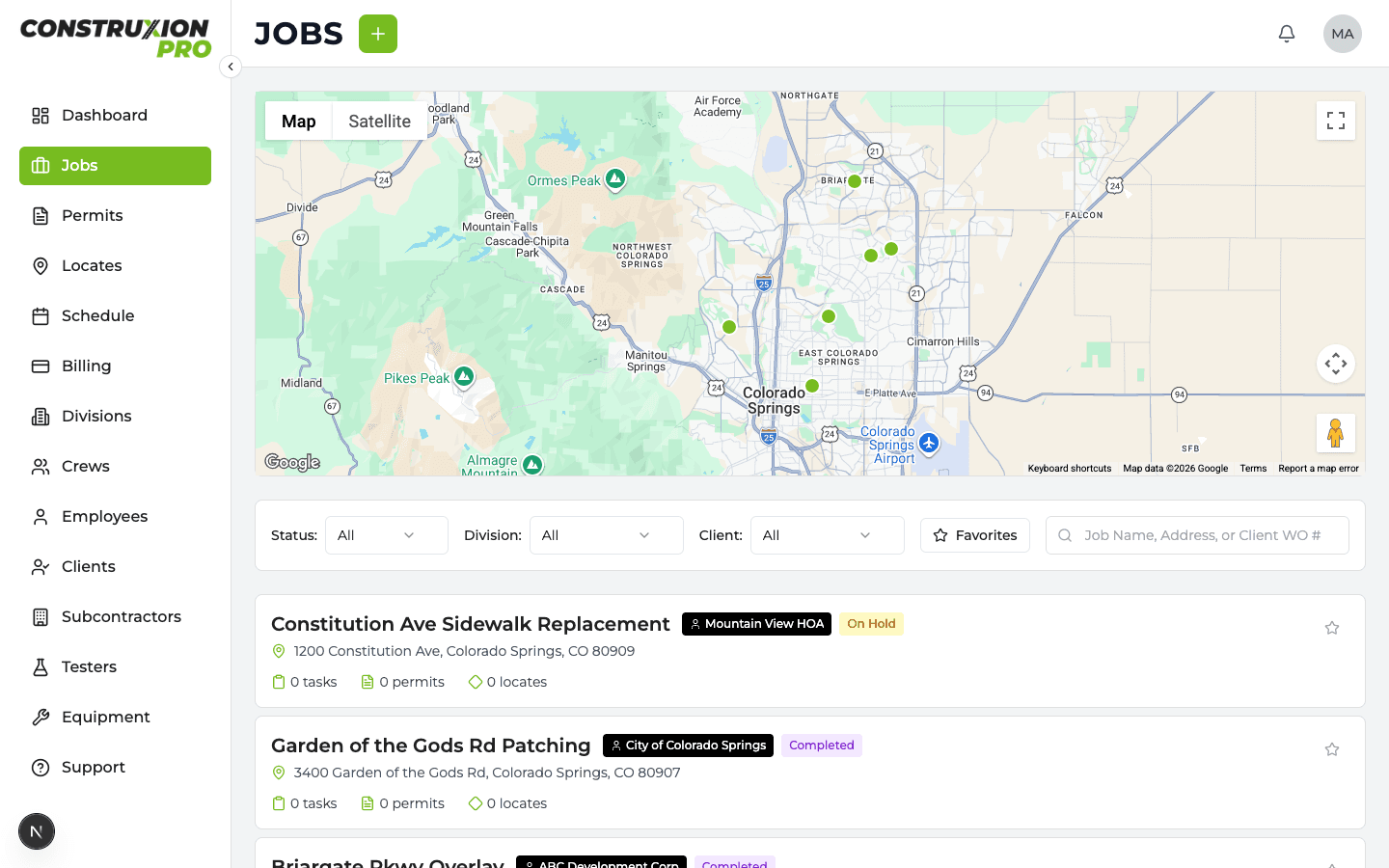
Job List Page
The Jobs page shows all jobs for the company. Available to: Owner, Manager, Administrative, Superintendent, Foreman.
- Search by job name or address
- Filter by status, client, or division
- Sort by name, date, or status
- Map view — Toggle to see all jobs plotted on a map
Creating a Job
- Click the green "+" button in the top navigation, or click Create Job on the Jobs page
- Fill in the job details:
- Job Name — A descriptive name (e.g., "Powers Blvd Resurfacing")
- Client — Select from existing clients or create a new one
- Address — Street address with autocomplete (geocodes automatically for map placement)
- Work Order Number — The client's reference number
- Divisions — Which of your company's divisions will work on this job
- Click Create
Duplicate Detection
When you submit a new job, the system checks for potential duplicates:
- Strong match: Same client + same work order number (case-insensitive)
- Weak match: Same client + same street address within the last 90 days
If duplicates are found, you'll see a warning panel listing the matches. You can:
- Cancel — Go back and verify
- Create Anyway — Proceed if it's a legitimate re-issue
Jobs with status "Archived" or "Completed" don't trigger duplicate warnings.
Job Statuses
| Status | Meaning |
|---|---|
| Pending | Job created but not yet started |
| Active | Work is underway |
| On Hold | Temporarily paused |
| Completed | All work finished |
| Billed | Invoicing completed |
| Archived | Job closed and hidden from active views |
Change a job's status from the status dropdown in the top navigation bar when viewing the job.
Job Detail Page
Click any job to open its detail page. The page has multiple tabs:
Details Tab
The main information tab showing:
- Job info — Name, address, client, work order number, status, dates
- Scope — Description of the work
- Contact Info — On-site contacts
- Divisions — Each division assigned to this job, with activation status
- Pending divisions show a green Activate button
- Active divisions show status badges and details
- Permits — Permits associated with this job (with status badges and renewal history)
- Locates — Locate requests for this job (with status badges and renewal history)
- Traffic Control — TC requirements and mode (in-house vs. subcontractor)
Tasks Tab
Lists all work tasks for the job. See Tasks for details.
Schedule Tab
Shows the scheduling timeline for this specific job. See Schedule for details.
Traffic Control Tab
Only visible when the job has traffic_control_required = true AND the TC mode is "in-house." Contains TC setups, numbers, and daily records. See Traffic Control for details.
Images Tab
Photo gallery for the job. Upload and organize site photos.
Files Tab
Document storage for the job. Upload and organize files (plans, contracts, permits, etc.).
Comments Tab
Discussion thread for the job. Users can post comments and mention other team members with @mentions. Mentions trigger notifications and push alerts.
Daily Logs Tab
Daily field reports. See Daily Logs for details. Only visible to Owner, Manager, Administrative, and Foreman roles (controlled by company daily log mode setting).
Billing Tab
Billing items, invoices, and payments for this job. See Billing for details. Only visible to users with the viewBilling permission.
Marking a Job as Duplicate
If a job turns out to be a duplicate of another, you can mark it rather than deleting it:
- On the job's detail page, open the status dropdown in the top navigation
- Click Mark as Duplicate
- Search for the original job (defaults to searching the same client)
- Optionally add a note explaining the situation
- Click Mark as Duplicate
This will:
- Link the duplicate to the original job
- Archive the duplicate (cascading to permits, locates, and future schedule entries)
- Dismiss any pending dashboard alerts for the duplicate
- Notify office staff
The duplicate job's Details tab will show a banner linking to the original job with the duplicate note.
The "Mark as Duplicate" action is also available:
- On Manager Dashboard alert cards (copy icon)
- Inside the Activation Wizard ("This looks like a duplicate" link)
Job Coordinates
Jobs have two sets of map coordinates:
- Address coordinates — Automatically geocoded when the job is created. Used on the Jobs list map view.
- Map pin coordinates — Manually set by dragging the pin on the job detail page map. Used for precise site location when the geocoded address isn't exact enough.