Dashboard
Dashboard - Construxion Pro User Guide
The Dashboard is the first page you see after logging in. It's completely different for each role — an Owner sees financial KPIs and charts, while a Labor user sees just their crew's schedule with driving directions.
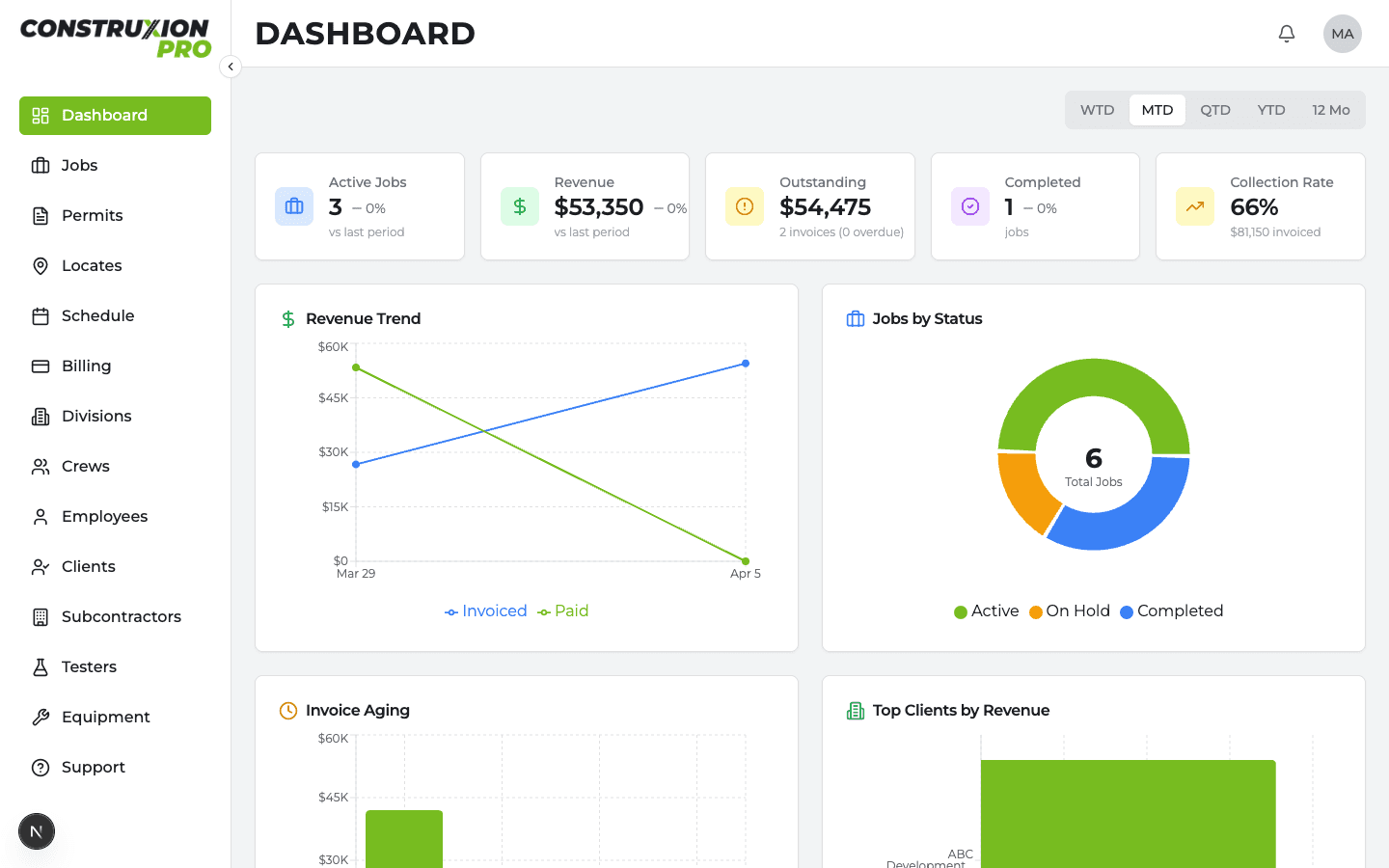
Owner Dashboard
The Owner Dashboard provides a high-level overview of the entire company.
KPI Cards (top row)
- Active Jobs — Count of jobs currently in "Active" status
- Revenue — Total invoiced revenue with a period selector (Month-to-Date, Year-to-Date, or Custom range)
- Outstanding Invoices — Total unpaid invoice balance, with a count of overdue invoices
- Completed Jobs — Count of jobs in "Completed" status
- Collection Rate — Percentage of invoiced revenue that has been collected
Charts
- Revenue Trend — Time-series chart showing revenue over the selected period
- Jobs by Status — Breakdown of all jobs by their current status
- Invoice Aging — How long invoices have been outstanding (bucket analysis)
- Top Clients by Revenue — Ranked list of clients by total invoiced revenue
Status Cards
- Permit & Locate Status — Summary of compliance across all jobs (active, expiring, expired counts)
- Crew Utilization — How many crews are scheduled vs. available
- Billing Pipeline — Pending measurement approvals, unbilled items, draft invoices
Manager Dashboard
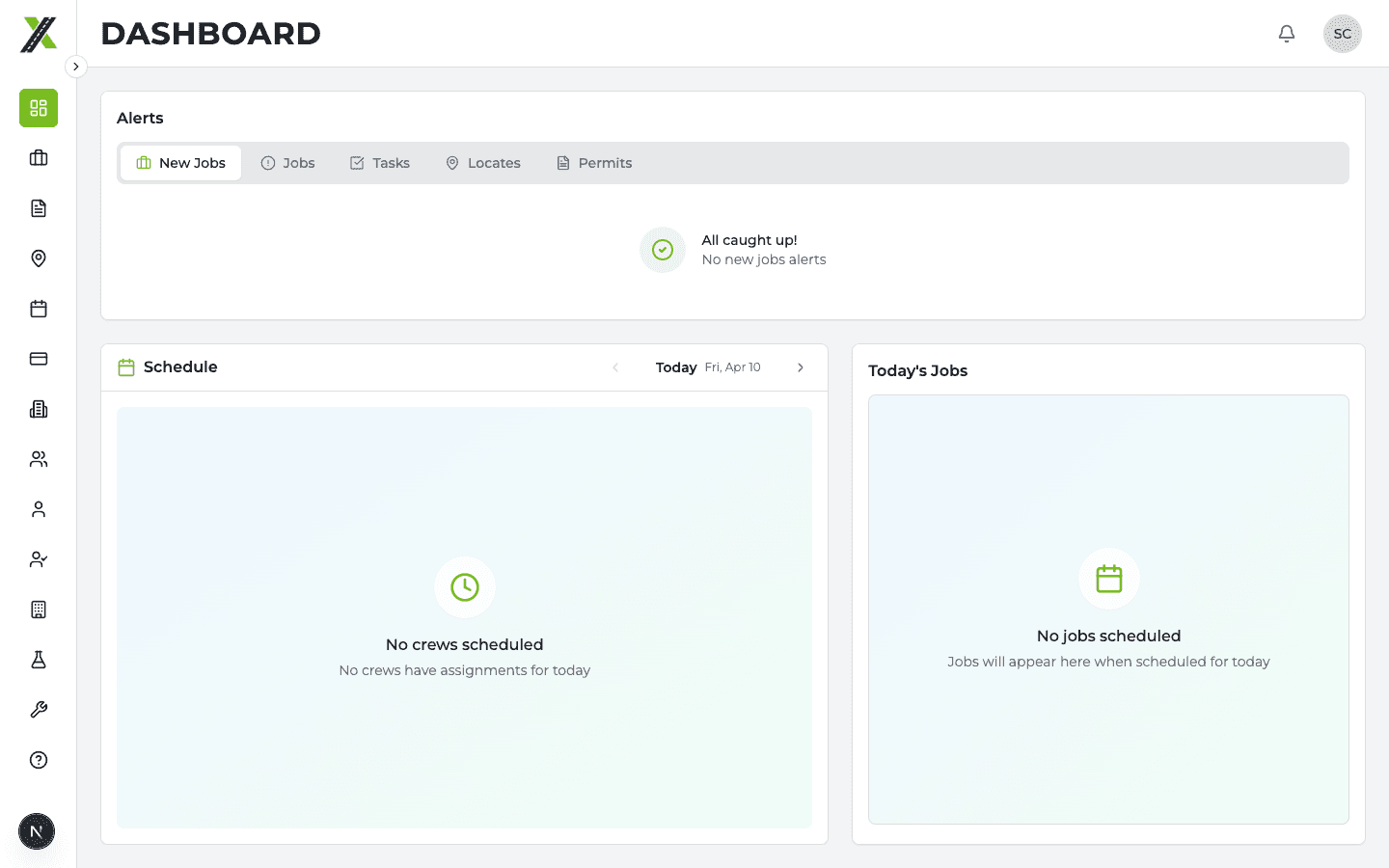
The Manager Dashboard is action-oriented — it shows what needs attention right now.
Alerts Panel
A scrollable list of items requiring action, organized by type:
- New Job Assignments (yellow card) — A new job has been assigned to your division. Click Set Details to open the Activation Wizard (see Divisions > Activation).
- Division Activated (blue informational card) — Another manager already activated a division on a shared job. Shows who activated it and the status. Click to view the job.
- Task Deletion Requests — A field worker has requested to delete a task. Approve or reject.
- Locate Alerts — Locates that are expiring or expired. Actions: Renew, Don't Renew.
- Permit Alerts — Permits that are expiring or expired. Actions: Renew, Don't Renew.
- Daily Log Alerts — Jobs with crew assignments but no daily log submitted.
Each alert card can be dismissed, and some have quick actions (renew, approve, edit) directly on the card.
Duplicate Job Handling: If a job looks like a duplicate, the alert card has a copy icon to mark it as a duplicate of another job. Inside the Activation Wizard, there's also a "This looks like a duplicate" link for the same purpose.
Crew Schedule Panel (left side)
Shows today's or tomorrow's crew assignments:
- Day navigator (toggle between today and tomorrow)
- Crew route cards showing which jobs each crew is assigned to
- Click a job to navigate to its detail page
- Finalize Schedule button — makes the schedule visible to field crews
Map Widget (right side)
Interactive map showing job locations for today's or tomorrow's scheduled work. Click markers to navigate to job details.
Administrative Dashboard
The Administrative Dashboard focuses on managing permits, locates, and invoices.
Urgent Actions
Organized into tabbed sections:
Locates tabs:
- Request — New locate requests to process
- Pending — Locates awaiting response
- Expiring — Locates nearing expiration
- Expired — Locates past expiration
Permits tabs:
- Request — New permit applications to submit
- Pending — Permits awaiting approval
- Expiring — Permits nearing expiration
- Expired — Expired permits
Invoices tabs:
- Draft — Invoices being prepared
- Pending — Invoices ready for review
- Overdue — Past-due invoices
- Sent — Invoices delivered to clients
Each card can be expanded inline to show full details (instructions, attachments, map) without opening the edit modal.
Superintendent Dashboard
The Superintendent sees a read-only view of their assigned divisions' crew schedules.
- Day navigator — Toggle between today and tomorrow
- Crew schedule cards — Shows finalized schedules for crews in their divisions
- Map widget — Job locations for the day
- Summary stats — Total crews, divisions, jobs, and pending tasks
Superintendents can only see schedules that have been finalized by a manager.
Foreman Dashboard
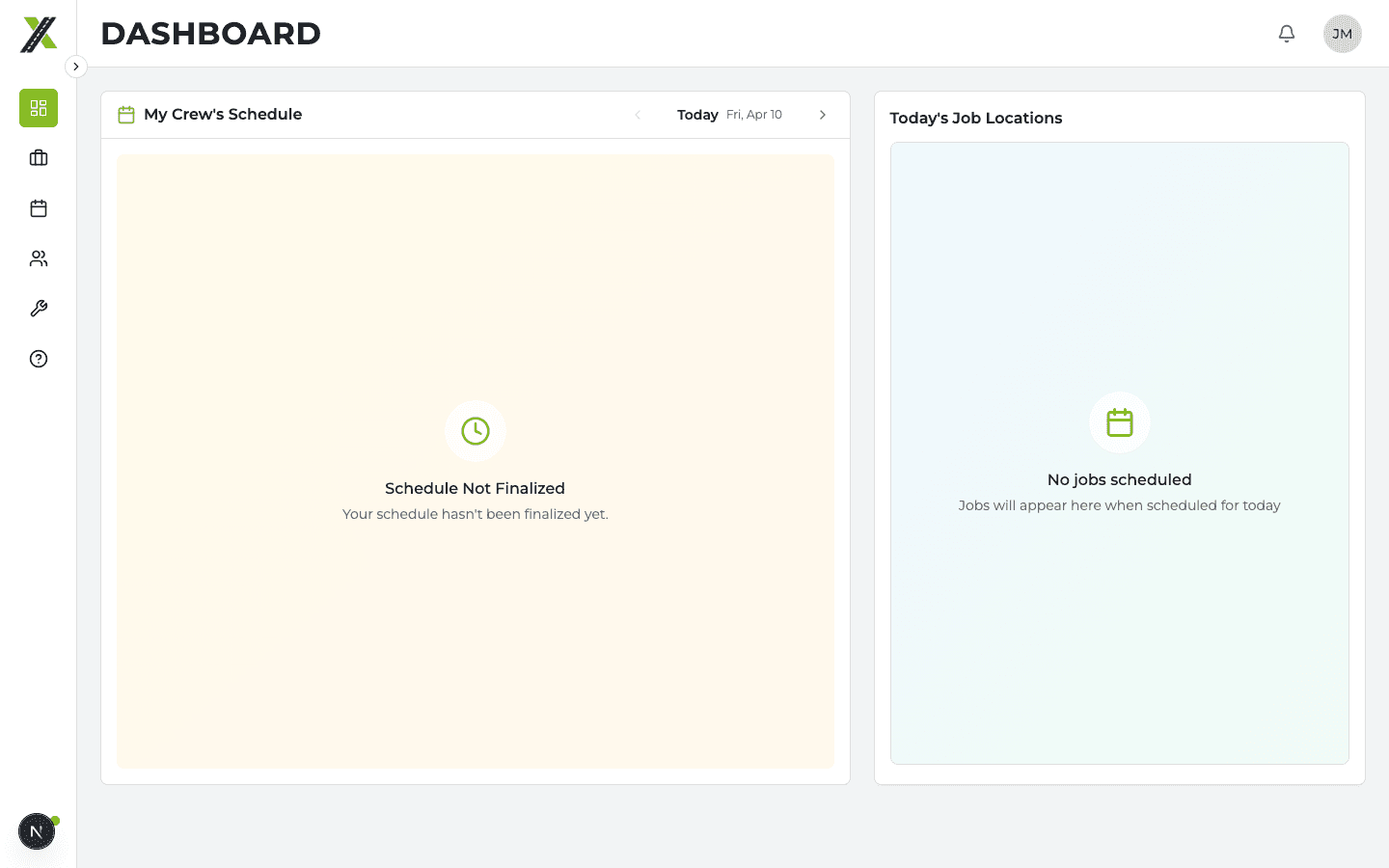
The Foreman sees their specific crew's schedule.
- Day navigator — Today and tomorrow
- Crew route card — Their crew's assigned jobs for the day
- Map widget — Job locations with the crew's route
- Summary — Total jobs and pending tasks for their crew
Foremen only see finalized schedules. If the schedule hasn't been finalized yet, they see a "preparing" state.
Labor Dashboard
The simplest dashboard — designed for field workers heading to job sites.
- Day navigator — Today and tomorrow
- My Schedule — Single card showing where they're working
- Get Directions — Button for each job that opens Google Maps with driving directions
- Map — Job location
- My Crew — Shows crew name, foreman name, and crew color
Like the Foreman Dashboard, Labor users only see finalized schedules.