Equipment
Equipment - Construxion Pro User Guide
The Equipment page tracks company-owned equipment, vehicles, and machinery. Available to Owner, Manager, Administrative, Superintendent, and Foreman roles.
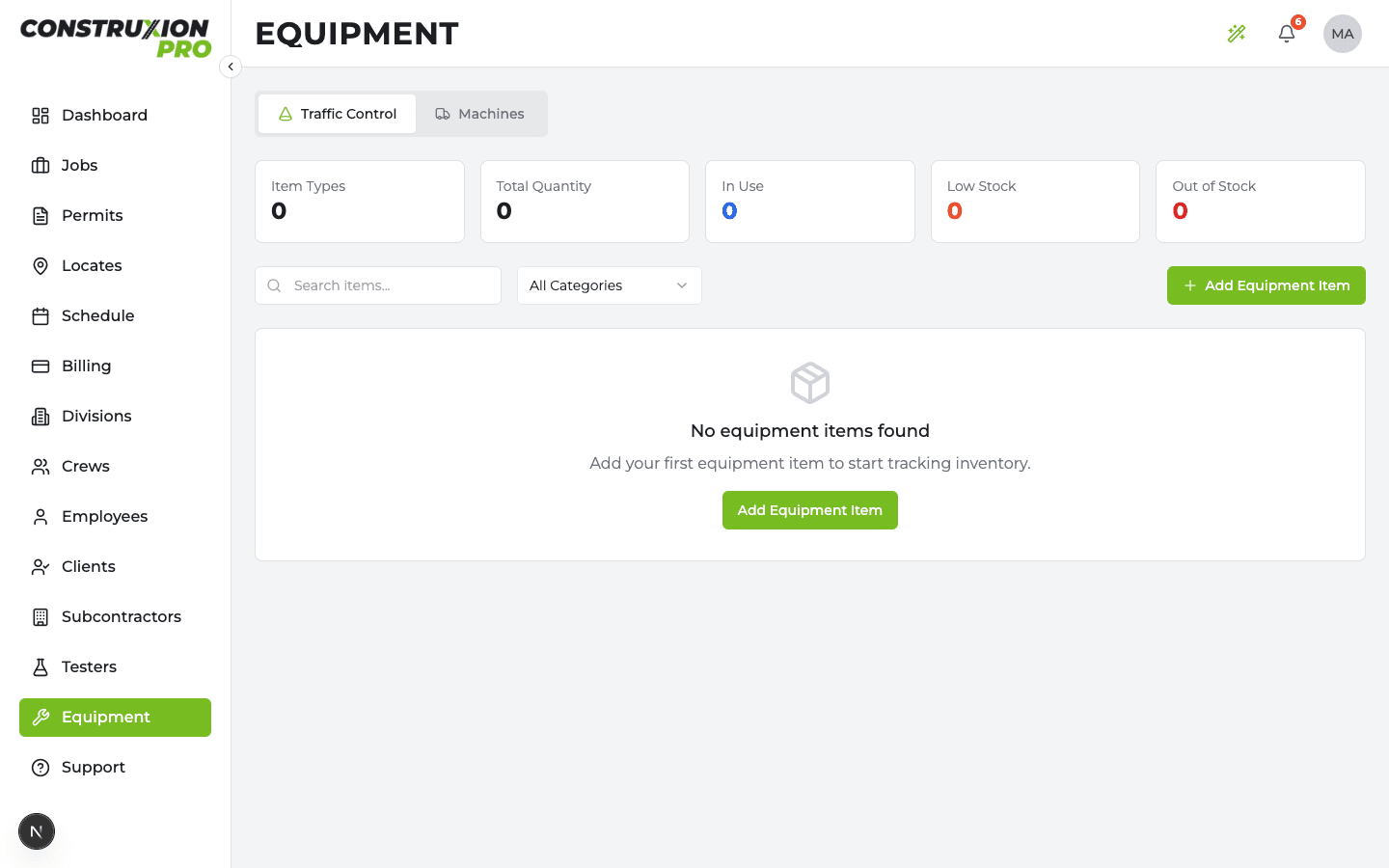
Equipment List Page
Shows all company equipment with:
- Equipment name/description
- Type/category
- Status and availability
- Search and filter
Managing Equipment
- Add new equipment with name, type, and details
- Track equipment status and current assignment
- Link equipment to jobs and crews
Equipment in Daily Logs
The Labor section of daily logs includes an "Equipment Operated" field for each employee entry. This links to the company's equipment list.
When entering equipment in a daily log:
- Autocomplete suggests from existing company equipment
- New equipment can be entered with a "Save to company equipment" option that adds it to the main equipment list for future use
This keeps the equipment list growing organically as field crews log their daily work.
Equipment Inspections
Build inspection checklists for your fleet and have crews run them from the field or the office. Available on the Equipment page's Inspections tab (web) and the Equipment section (mobile).
Setting up checklists
Owners, managers, and administrative users create checklists under Settings → Inspections:
- Name the checklist (e.g. "Daily Pre-Trip") and add items ("Tires & wheels", "Fluid levels", "Lights")
- A company can have multiple checklists for different equipment types or cadences
- Editing a checklist never changes past inspection results
Running an inspection
- Web: Equipment → Inspections tab → New Inspection, or the Run Inspection menu item on any machine row
- Mobile: the Equipment tab's Inspections view, the Inspect button on daily-log equipment rows, or the dashboard chip that appears when a unit is assigned to you
- Each item is marked Pass, Fail, or N/A, with optional comments; failed items can attach a photo
- Inspections run from a daily log automatically attach to that log's job
Failures
A failed inspection:
- Flags the unit with a failure badge until the issue is marked addressed
- Raises a dashboard alert for owners and administrative users, plus a push notification
- Clears automatically once someone marks the failure addressed with a resolution note
Daily-log integration
Equipment rows on a daily log show an inspection chip: green Inspected when the day's runs are clean, red with a count (e.g. "1 of 2 failed") when they aren't. Tapping the chip opens the run's full results. A separate Inspect button stays available for a second run (pre-trip and post-trip on the same day both count).