Dashboard
Dashboard - Construxion Pro User Guide
The Dashboard is the first page you see after logging in. It's completely different for each role — an Owner can flip between a company-wide Operations view and a Business view of financial KPIs and charts, while a Labor user sees just their crew's schedule with driving directions.
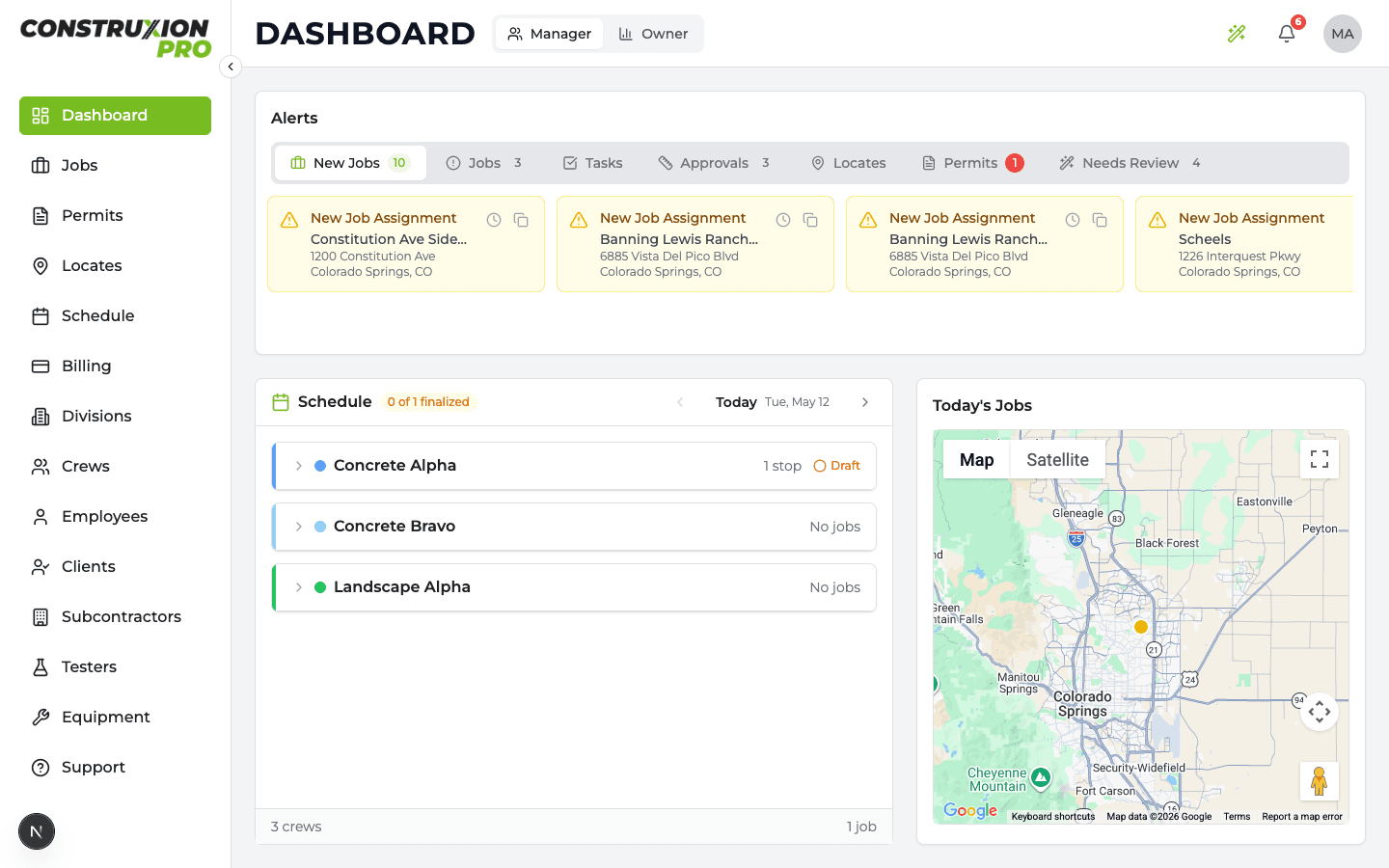
Owner Dashboard
Owners get two views with a toggle in the top bar:
- Operations (default) — the company-wide day-to-day view: alerts, today's crew schedule, and the map. It's the same layout as the Manager Dashboard below, but scoped to every division in the company, with a division filter (All Divisions + one chip per division) to narrow the alerts, schedule, and map to a single division.
- Business — financial KPIs, charts, and health summaries, described here.
Today at a Glance (top strip)
Four tiles answering "what's happening right now":
- Crews Out Today — crews with an assignment today vs. total (links to Schedule)
- Jobs Being Worked — distinct jobs on today's crew assignments (links to Schedule)
- Daily Logs Today — logs submitted for today's date
- Logs Awaiting Approval — submitted logs not yet approved, any date (click to jump to the Operations view where they can be reviewed)
KPI Cards
All KPI cards are clickable — jobs cards open the Jobs list pre-filtered, financial cards open Billing.
- Active Jobs — Count of jobs currently in "Active" status (shows how many are on hold)
- Revenue — Total invoiced revenue with a period selector (WTD / MTD / QTD / YTD / 12 Mo)
- Outstanding Invoices — Total unpaid invoice balance, with a count of overdue invoices
- Completed Jobs — Count of jobs completed this period, with a trend vs. the previous period
- Collection Rate — Percentage of invoiced revenue that has been collected
Charts
- Revenue Trend — Time-series chart showing revenue over the selected period (Advanced and Max plans)
- Jobs by Status — Breakdown of all jobs by their current status
- Invoice Aging — How long invoices have been outstanding (bucket analysis)
- Top Clients by Revenue — Ranked list of clients by total invoiced revenue (Advanced and Max plans)
Division Health
For companies with more than one division: one row per division showing active jobs, crews out today, and open permit/locate issues. Clicking a row jumps to the Operations view filtered to that division.
Status Cards
- Permit & Locate Status — Summary of compliance across all jobs (rows link to the Permits / Locates pages)
- Crew Utilization — How many crews are scheduled vs. available (links to Schedule)
- Billing Pipeline — Pending measurement approvals, unbilled items, draft invoices (rows link to Billing)
Manager Dashboard
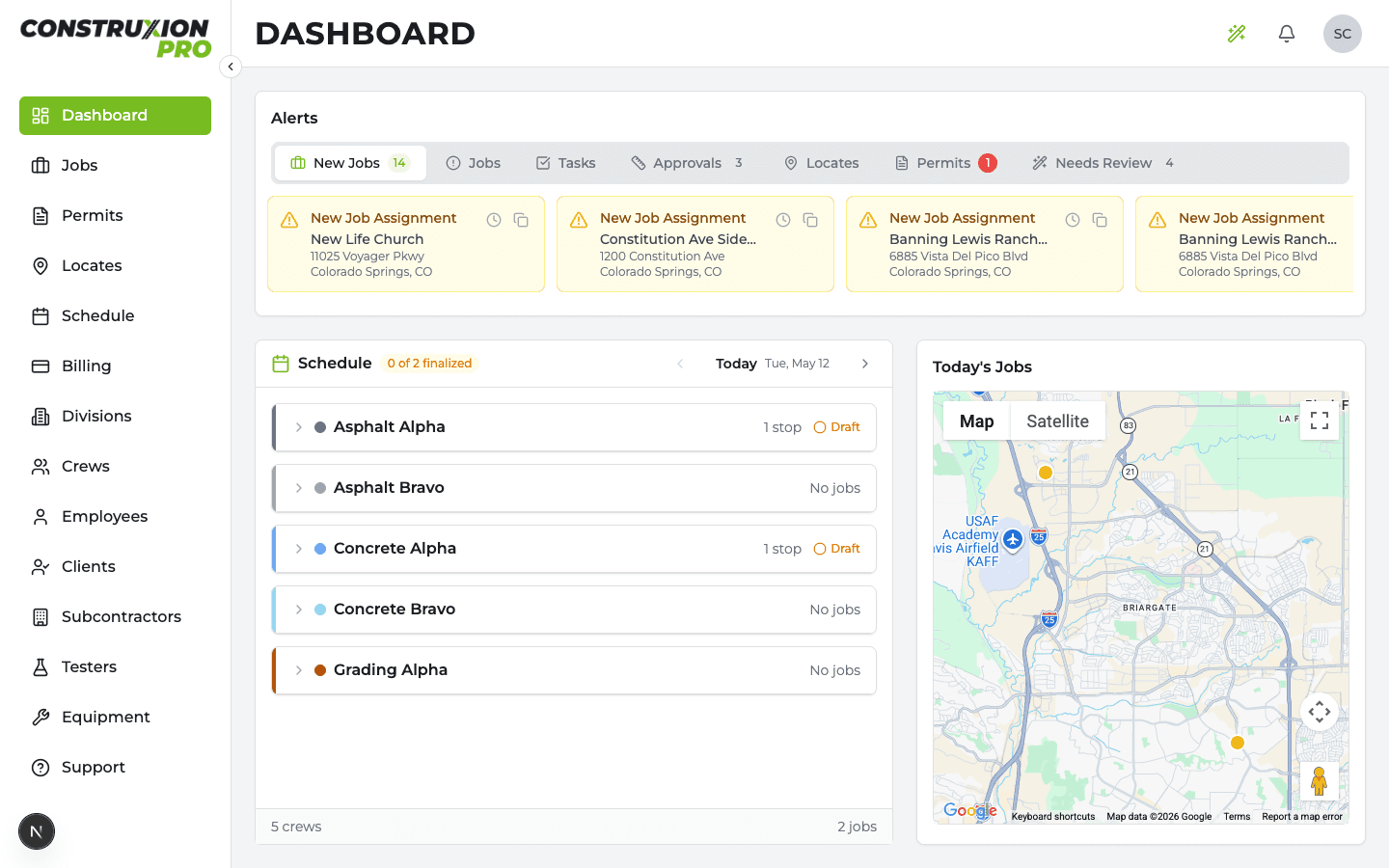
The Manager Dashboard is action-oriented — it shows what needs attention right now. (Owners see this same layout as their Operations view, company-wide with a division filter.)
Alerts Panel
A scrollable list of items requiring action, organized by type:
- New Job Assignments (yellow card) — A new job has been assigned to your division. Click Set Details to open the Activation Wizard (see Divisions > Activation).
- Division Activated (blue informational card) — Another manager already activated a division on a shared job. Shows who activated it and the status. Click to view the job.
- Task Deletion Requests — One card per job: "2 task deletion requests to approve or reject", with the tasks and who asked. Click it to open the job's Tasks tab at its Deletion requests card, which shows each task, who asked, when and why, with Approve and Reject (optional note for the requester). Owners and the managers of the task's division review requests; approving deletes the task, so it also needs the Delete Tasks permission. Owners see every division's requests, including under My Divisions.
- Locate Alerts — Locates that are expiring or expired. Actions: Renew, Don't Renew.
- Permit Alerts — Permits that are expiring or expired. Actions: Renew, Don't Renew.
- Daily Log Alerts — Jobs with crew assignments but no daily log submitted.
Each alert card can be dismissed, and some have quick actions (renew, approve, edit) directly on the card.
Duplicate Job Handling: If a job looks like a duplicate, the alert card has a copy icon to mark it as a duplicate of another job. Inside the Activation Wizard, there's also a "This looks like a duplicate" link for the same purpose.
Crew Schedule Panel (left side)
Shows today's or tomorrow's crew assignments:
- Day navigator (toggle between today and tomorrow)
- Crew route cards showing which jobs each crew is assigned to
- Click a job to navigate to its detail page
- Finalize Schedule button — makes the schedule visible to field crews
Map Widget (right side)
Interactive map showing job locations for today's or tomorrow's scheduled work. Click markers to navigate to job details.
Administrative Dashboard
The Administrative Dashboard focuses on managing permits, locates, and invoices.
Urgent Actions
Organized into tabbed sections:
Locates tabs:
- Request — New locate requests to process
- Pending — Locates awaiting response
- Expiring — Locates nearing expiration
- Expired — Locates past expiration
Permits tabs:
- Request — New permit applications to submit
- Pending — Permits awaiting approval
- Expiring — Permits nearing expiration
- Expired — Expired permits
Invoices tabs:
- Pending — Invoices ready to be marked sent
- Sent — Invoices delivered to clients
- Partially Paid — Invoices with payments recorded but still have an outstanding balance
- Overdue — Sent or partially paid invoices with a balance, past their due date. An invoice moves here from Sent or Partially Paid the day after it's due. This tab is hidden when payments are recorded outside Construxion Pro (Settings → Billing).
Click any card to open its preview — for invoices this shows the full invoice with line items, payments, and the status history audit timeline. Mark as Sent and Record Payment are available both in the preview header and the three-dot menu; Record Payment now works on Pending invoices too (for cash-at-close or prepayments) and routes through the external invoice number gate if your company uses external numbers. Each card can also be expanded inline with the chevron to see instructions, attachments, or map details without opening the preview.
Superintendent Dashboard
The Superintendent sees a read-only view of their assigned divisions' crew schedules.
- Day navigator — Toggle between today and tomorrow
- Crew schedule cards — Shows finalized schedules for crews in their divisions
- Map widget — Job locations for the day
- Summary stats — Total crews, divisions, jobs, and pending tasks
Superintendents can only see schedules that have been finalized by a manager.
Foreman Dashboard
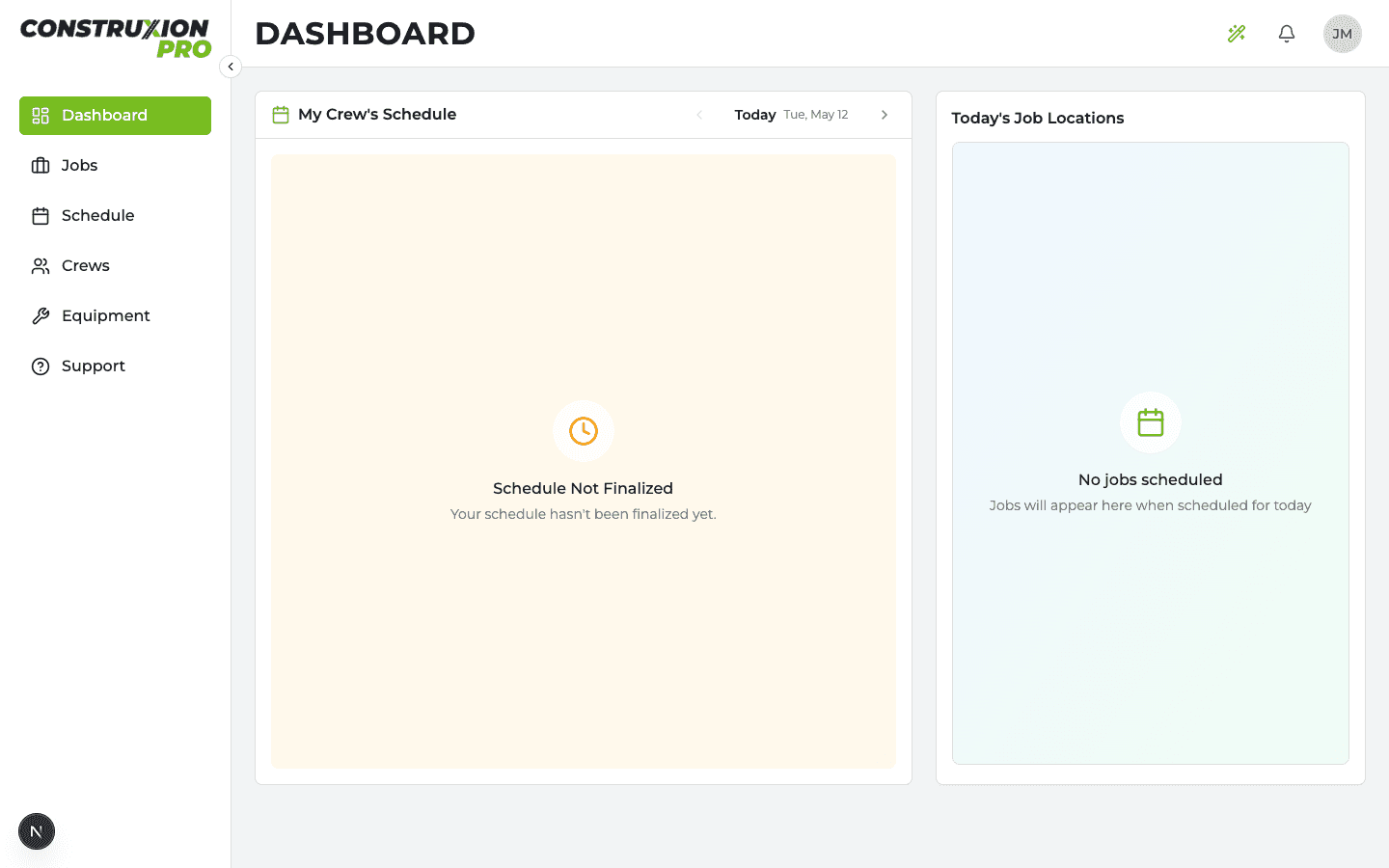
The Foreman sees their specific crew's schedule.
- Day navigator — Today and tomorrow
- Crew route card — Their crew's assigned jobs for the day
- Map widget — Job locations with the crew's route
- Summary — Total jobs and pending tasks for their crew
Foremen only see finalized schedules. If the schedule hasn't been finalized yet, they see a "preparing" state.
Labor Dashboard
The simplest dashboard — designed for field workers heading to job sites.
- Day navigator — Today and tomorrow
- My Schedule — Single card showing where they're working
- Get Directions — Button for each job that opens Google Maps with driving directions
- Map — Job location
- My Crew — Shows crew name, foreman name, and crew color
Like the Foreman Dashboard, Labor users only see finalized schedules.