Billing
Billing - Construxion Pro User Guide
The Billing system covers the full revenue cycle: measurement-based billing items, manual charges, invoices, and payment collection.
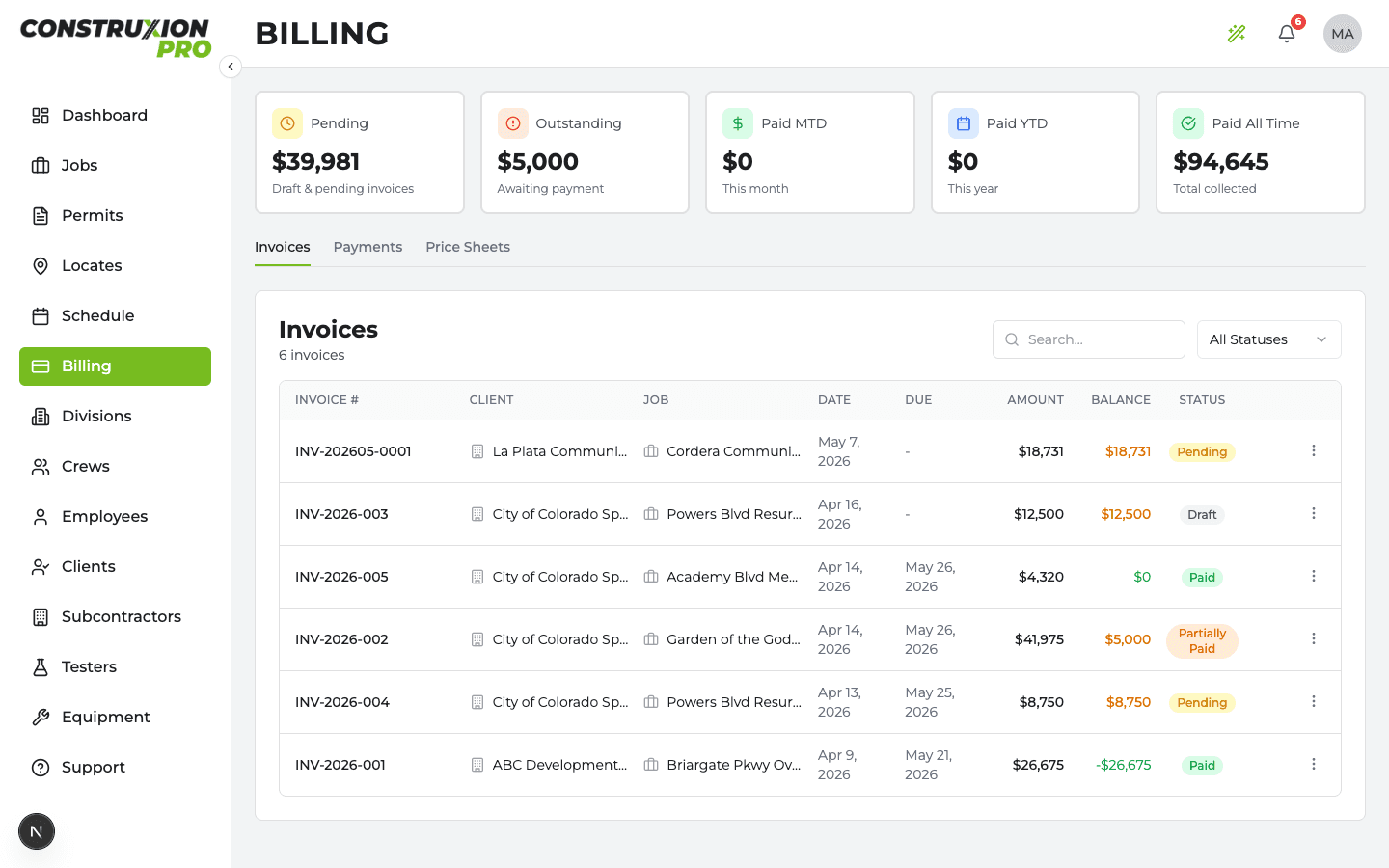
Accessing Billing
- Job Billing tab — Billing items and invoices for a specific job
- Billing page (sidebar) — Company-wide view of all invoices, payments, and price sheets
Both require the viewBilling permission (Owners and Managers have it by default; Administrative users need it granted).
Billing Items
Billing items are individual line items that become rows on an invoice. They come from several sources:
From Measurements (Automatic)
When actual measurements are approved on a task, a billing item is automatically created:
- Description:
{Task Name} ({Type Name}) - {Quantity} {Unit} - Category:
task - Price: Resolved from price sheets (see below)
- Unit change: You can change the billing item's unit from a dropdown on the Billing tab, which triggers recalculation from the original measurement data
From Permits & Locates (Automatic)
When a permit or locate has a cost:
- Cost type
cost: Flat dollar amount - Cost type
cost_plus: Base cost x (1 + markup percentage / 100)
A billing item is auto-created via syncPermitBillingItem() / syncLocateBillingItem().
If the billing item has already been invoiced and the cost changes:
- A new Adjustment billing item is created for the difference
- The original invoiced item is never modified
If the cost is removed from an invoiced permit/locate:
- A negative Credit Adjustment billing item is created
Regenerate: If permit/locate billing items were accidentally deleted, click the Regenerate button on the Billing tab to recreate them.
Manual Items
Add items that don't come from measurements:
- Click Add Item on the Billing tab
- Choose from From Division (catalog items from division templates) or Custom (free-text entry)
- Categories:
traffic_control,permit,other
All billing items are sorted alphabetically by description.
Editing Quantities
You can edit the quantity on a pending billing item from the Billing tab. A reason note is required on every change, and the change is recorded in a visible audit trail next to the item so anyone reviewing the invoice later can see what changed and why. Once an item is invoiced, the quantity is locked — corrections happen via an adjustment line on a follow-up invoice.
Work Dates
Every measurement records the day the work was physically done — which can differ from the day it was submitted. That date flows onto the billing item, so period billing is based on when work happened, not when paperwork caught up.
- Where it comes from: the submission worksheet asks "What day was this work done?" (defaulting to the day the measurements were entered); work submitted through a daily log always keeps that log's date, which can't be overridden
- Reviewing: approvers see each submission's work date, can correct it before approving, and get a "Backdated" flag when a submission's work date is 3+ days before it was submitted
- Billing cutoffs: the pending billing items table shows a Work Date column and a "Work done through [date] → Select items" filter — pick your billing-period cutoff and every line worked on or before it is selected for the invoice in one tap
- Unsubmitted work: before invoicing, the Billing tab warns when the job still has measurements entered but not yet submitted, so nothing quietly slips to next month's bill
- On invoices: work dates print on the invoice PDF per line when enabled under Settings → Billing → Work Dates on Invoices (off by default)
Price Sheets
Price sheets determine the default price for each billing item.
Price Resolution Order
When a billing item is created, the price is resolved in this order:
- Client price sheet — Per-client override prices (if one exists for this client)
- Company defaults — Base prices for all task template outputs
- Template default — The default price set on the task template itself
Managing Price Sheets
Company Defaults (from the Billing page):
- Click Company Defaults to open the side sheet
- Set base prices for every division task template output
- Price history is tracked (who changed what, when)
Client Price Sheets (from the Billing page or client profile):
- Create a price sheet for a specific client
- Override individual item prices
- Items without overrides inherit from company defaults
Pricing on Templates
Division task templates can have default prices set:
- Per-output default price (on
division_task_template_outputs) - Per-type default price (on
division_task_template_types) - These are the fallback when no price sheet covers the item
Invoices
Creating an Invoice
- Go to a job's Billing tab
- Click Create Invoice
- Select invoice type — Partial or Final (required before proceeding)
- Review the multi-tab dialog:
- Details — Invoice number, dates, type
- Items — All pending billing items listed by category (task, traffic control, permit, other). Uncheck items to exclude them.
- Min — Minimum charge groups (if applicable)
- Notes — Additional notes for the invoice
- All included items must have a price set
- Click Create
You can also add other items directly within the invoice creation dialog using the "Add Other Item" button.
Invoice Statuses
| Status | Meaning | Next Step |
|---|---|---|
| Draft | Being prepared | Edit and finalize |
| Pending | Ready for review | Mark as sent |
| Sent | Delivered to client | Record payments |
| Partial | Partially paid — still has outstanding balance | Record remaining payments |
| Paid | Fully paid | Complete |
| Overdue | Past due date with outstanding balance | Follow up with client |
| Cancelled | Called off — its line items went back to pending | Bill them on a new invoice |
Pending and Outstanding mean the same thing on every screen: Pending is the total of invoices not sent yet (Draft and Pending); Outstanding is the unpaid balance of invoices that have been sent. An unsent invoice never counts as outstanding.
Due Dates and Overdue
Set Default Payment Terms in Settings > Billing (for example, Net 30). New invoices then get a due date that many days after the invoice date; you can change the due date on any invoice. An invoice is overdue once it's sent, unpaid, and past its due date. Overdue is worked out from the due date whenever an invoice is shown, so there's nothing to update by hand.
Cancelling an Invoice
Cancelling an invoice puts its line items back to pending, so the work can go on a new invoice. A cancelled invoice can't be reopened. An invoice with payments recorded, or marked Paid or Partially Paid, can't be cancelled: delete its payments first (or change it back to Sent).
Marking as Sent (Invoice Requirements)
Before an invoice can move from Pending to Sent, all invoice requirements must be satisfied. These are company-configured required documents (e.g., lien releases, schedule of values):
- When you click Mark as Sent, a checklist dialog appears
- Check off each required document as it's been collected
- The invoice can only be marked "sent" when all requirements are satisfied
Configure invoice requirements in Settings > Billing > Invoice Requirements.
External Invoice Number
If your company uses external invoice numbers (set in Settings > Billing), the invoice's external reference number must be filled in before it can be marked Sent, Viewed, Partial, Paid, or Overdue. If you try to mark an invoice sent or record a payment on a pending invoice without one, the edit dialog opens first with the external number field highlighted in red. Save that, and the pending action (mark sent, record payment) happens automatically after.
Invoice Preview
Click an invoice to open the preview dialog showing:
- Company logo and branding
- Client information
- Line items grouped by category
- Totals
- Payment history with running balance
- Status History — a collapsible audit timeline of every status change with timestamps and user attribution
- Inline actions — Mark as Sent (when pending), Record Payment, Edit, Print — all right from the preview so you don't have to close it to find the menu
- Print-friendly layout
Payments
Recording a Payment
- Open the invoice preview
- Click Record Payment (available for sent, partial, and overdue invoices with a balance)
- Enter:
- Amount — Payment amount
- Payment Method — Check, ACH, Wire, Credit Card, Cash, Other
- Reference Number — Check number, transaction ID, etc.
- Payment Date
- Notes (optional)
- Click Record
The record-payment dialog stacks on top of the invoice preview so you can see what you're paying against. When it saves, the preview underneath refreshes to show the new balance and payment row without needing to reopen.
A payment can only be recorded on an invoice that has been sent. On a Draft or Pending invoice — cash at job close, a prepayment — Record Payment runs Mark as Sent first (the external invoice number and required documents, if your company uses them), then opens the payment dialog. Marking an invoice paid by hand always goes through Record Payment, so every paid invoice has a payment behind it.
When total payments equal the invoice amount, the invoice automatically moves to Paid. Partial payments move it to Partial, and the outstanding balance stays visible on the card and in the preview. Deleting an invoice's last payment moves it back to Sent.
Marking Several Invoices Paid
On the Billing page, select sent invoices with a balance and click Mark as Paid. A payment for each invoice's full balance is recorded, with the method, date and notes you choose.
Payments Recorded in Your Accounting Software
If you record customer payments outside Construxion Pro, turn on Payments are recorded outside Construxion Pro in Settings > Billing. Dashboards and the Billing page then show what you've invoiced, and hide paid, outstanding and overdue figures that would otherwise read $0 paid.
Viewing Payments
- Invoice preview — Shows payment history section with running balance
- Billing page > Payments tab — All payments across all invoices, with search and filtering
- Client profile > Revenue tab — Payment history and balance tracking per client
Billing Permissions
Billing access is controlled by two permissions:
viewBilling— Can see billing items, invoices, payments, and price sheetseditBilling— Can create/edit billing items, invoices, and record payments
These are enforced both in the UI and at the database level (Row Level Security).