Employees
Employees - Construxion Pro User Guide
The Employees page manages all users within the company — from the company owner down to field laborers. Available to Owner, Manager, and Administrative roles.
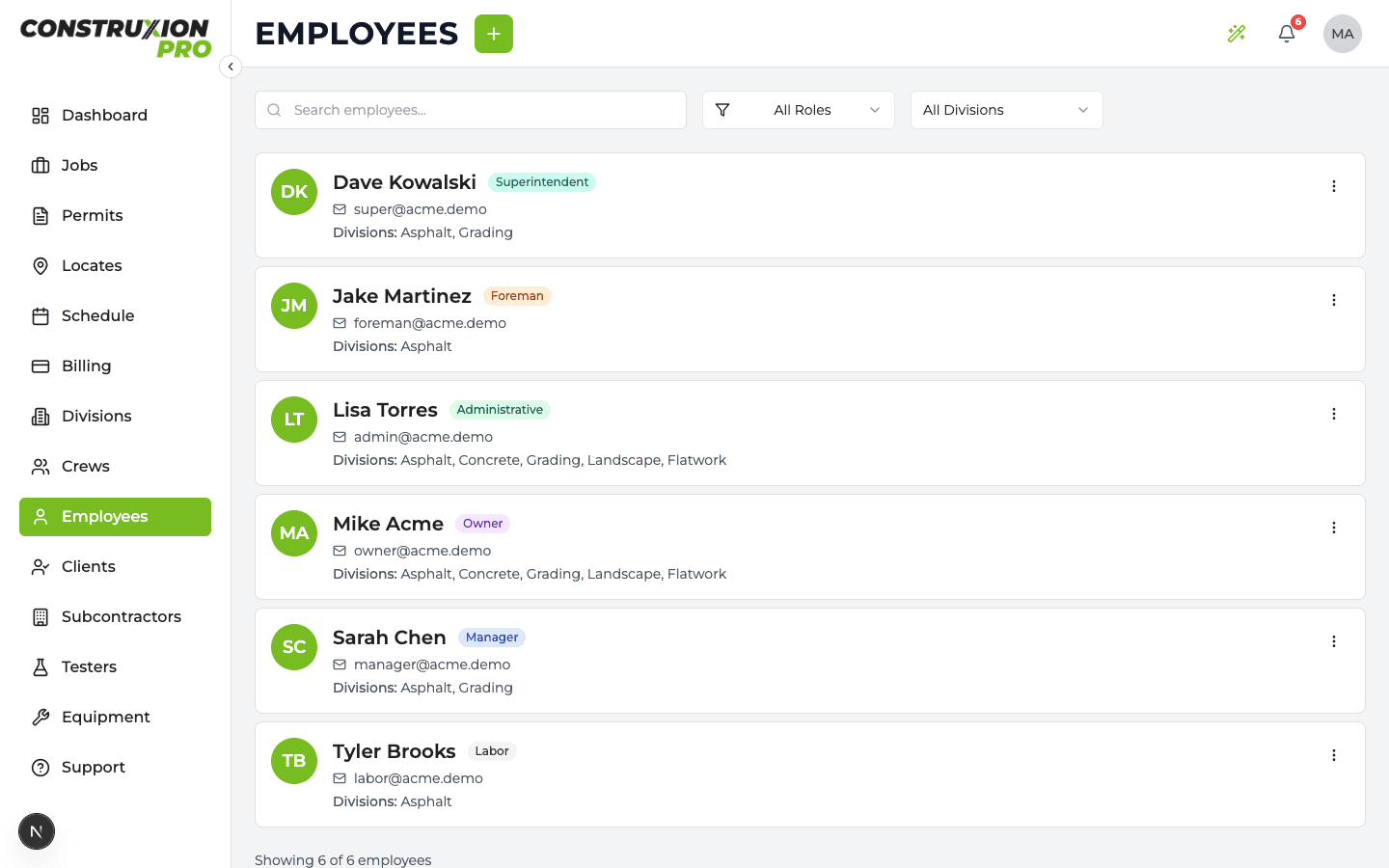
Employee List Page
Shows all company employees with:
- Name and avatar
- Role
- Division and crew assignments
- Email and phone
- Password setup status (whether they've set their password)
- Search and filter by role or division
Adding an Employee
- Click Add Employee on the Employees page
- Enter:
- First name and Last name
- Email address (used for login)
- Phone number
- Role — Owner, Manager, Administrative, Superintendent, Foreman, or Labor
- Divisions — Which divisions they belong to
- Crews — Which crews they're on
- Click Create
The employee receives an email invitation to set their password.
Employee Roles
Each role grants different levels of access throughout the app:
| Role | Description | Typical Position |
|---|---|---|
| Owner | Full access to everything, cannot be restricted | Company owner, CEO |
| Manager | Full access to managed divisions, crew scheduling, billing | Division manager, project manager |
| Administrative | Cross-division data access, office operations | Office manager, coordinator |
| Superintendent | Field supervision, read-only schedule, equipment | Site superintendent |
| Foreman | Crew management, daily logs, task completion | Crew foreman, lead |
| Labor | Basic schedule view with driving directions | Field worker |
For the complete access matrix, see Roles & Permissions.
Employee Side Sheet
Click an employee to open their detail side sheet (a panel that slides in from the right). This shows:
Profile Section
- Name, email, phone, avatar
- Role
- Division and crew assignments
Permissions Section
- Per-user permission toggles
- Owners see "Owners have full permissions" (no toggles — owner permissions cannot be restricted)
- For other roles, each permission can be toggled on/off as an override to the company's role defaults
- Who can change them: owners can change anyone's except another owner's. Managers can change them only for people ranked below them who share one of their divisions, and only permissions the manager has. Nobody changes their own.
Permissions System
Permissions are resolved through a 3-tier priority system:
- Per-user override — Set on the employee's side sheet. Overrides everything.
- Company role default — Set in Settings > Role Permissions. Applies to all users of that role.
- Hardcoded role default — Built-in defaults if nothing else is configured.
Available Permissions
| Permission | What It Controls |
|---|---|
| View All Jobs | See all jobs, not just assigned ones |
| Edit Jobs | Change job details and division items (permits, locates, division status) |
| Delete Jobs | Permanently delete a job (owners only by default; not offered in the app yet). Archiving a job is decided by role, not by this permission |
| Create + Edit Tasks | Add tasks to a job and edit them, including measurements, photos and comments |
| Delete Tasks | Directly delete tasks |
| Request Task Deletion | Request deletion (needs manager approval) |
| View All Employees | See all company employees |
| Edit Employees | Modify employee records |
| Delete Employees | Remove (deactivate) employees |
| Create Labor (No-Login) Employees | Add roster-only labor employees, who don't use the app, so they can be put on crews |
| View Billing | See billing items, invoices, payments, price sheets |
| Edit Billing | Create/edit billing items and invoices |
| View Schedule | See the schedule page |
| Edit Company Settings | Change company settings and the company profile (owners by default) |
| Manage Permissions | Change individual employees' permissions, within the rules above (role defaults are owners only) |
| Override Fixed Measurement Dimensions | Replace a task template's fixed length, width or depth on one job task, with a note |
| Change How a Task Is Billed | Change the unit one job task bills in (for example SF to CY) without seeing or setting prices |
Owner Immunity
Owners always have all permissions. This is enforced at multiple levels:
- The permission resolver short-circuits for owners
- API routes reject attempts to modify owner permissions
- The UI shows a notice instead of toggles
- Database triggers strip any owner-targeted permission writes
Division and Crew Assignments
Employees are assigned to divisions and crews:
- Divisions: Determines which jobs and data they can access (especially for Managers and Superintendents who only see their divisions' data)
- Crews: Determines which crew schedules they see (especially for Foremen and Labor)
These assignments are maintained as UUID arrays on the user record and stay in sync when modified from either the employee side sheet or the crew/division management pages.
Editing an Employee
From the employee side sheet:
- Click Edit to modify profile information
- Change role, divisions, or crews
- Toggle individual permissions
Changes to divisions and crews trigger a two-way sync — updating the employee also updates the crew/division member lists, and vice versa.
Removing an Employee
Removing an employee deactivates them rather than deleting them. Their name stays on everything they did — daily logs, measurements, payments — but they drop off employee lists and pickers and can no longer sign in. A phone number they signed in with is freed, so it can be used for someone new.